How refunds work for you, who pays which fees, how to refund one buyer yourself, and what happens when you cancel an event.
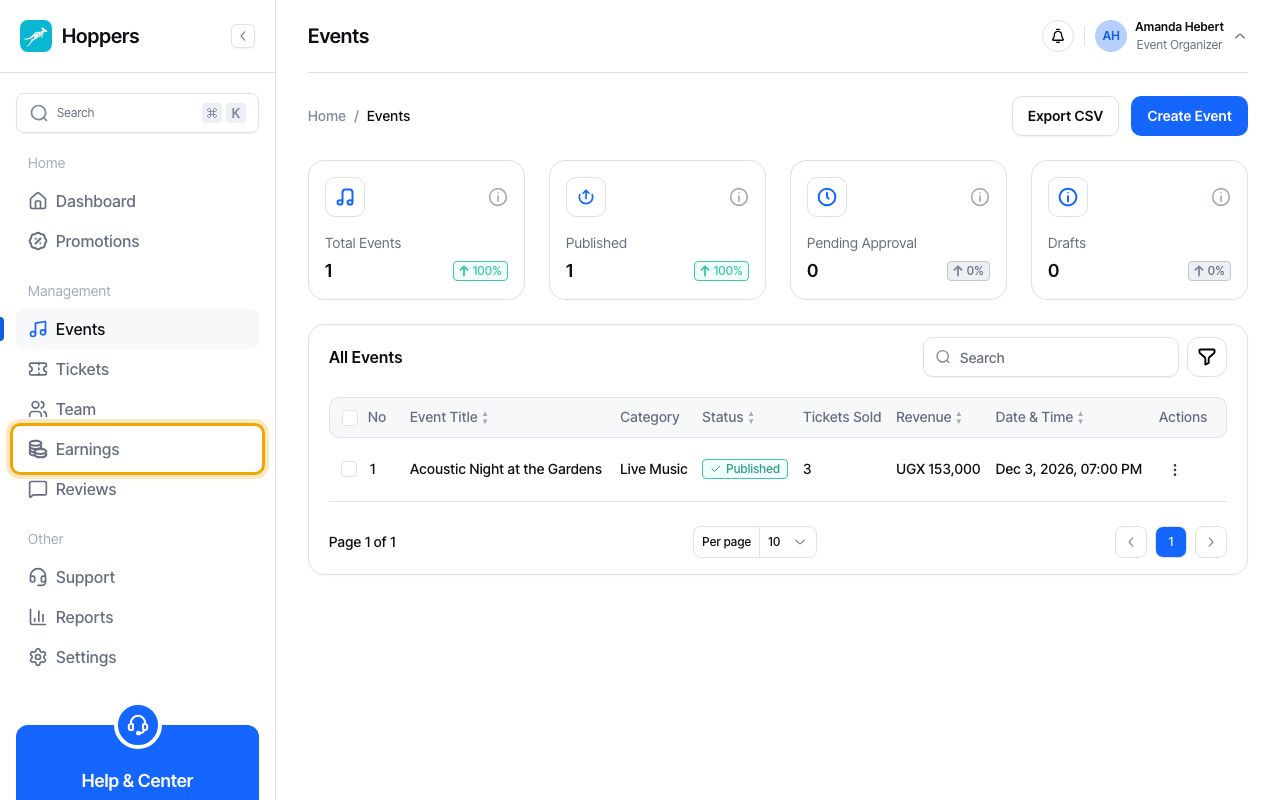
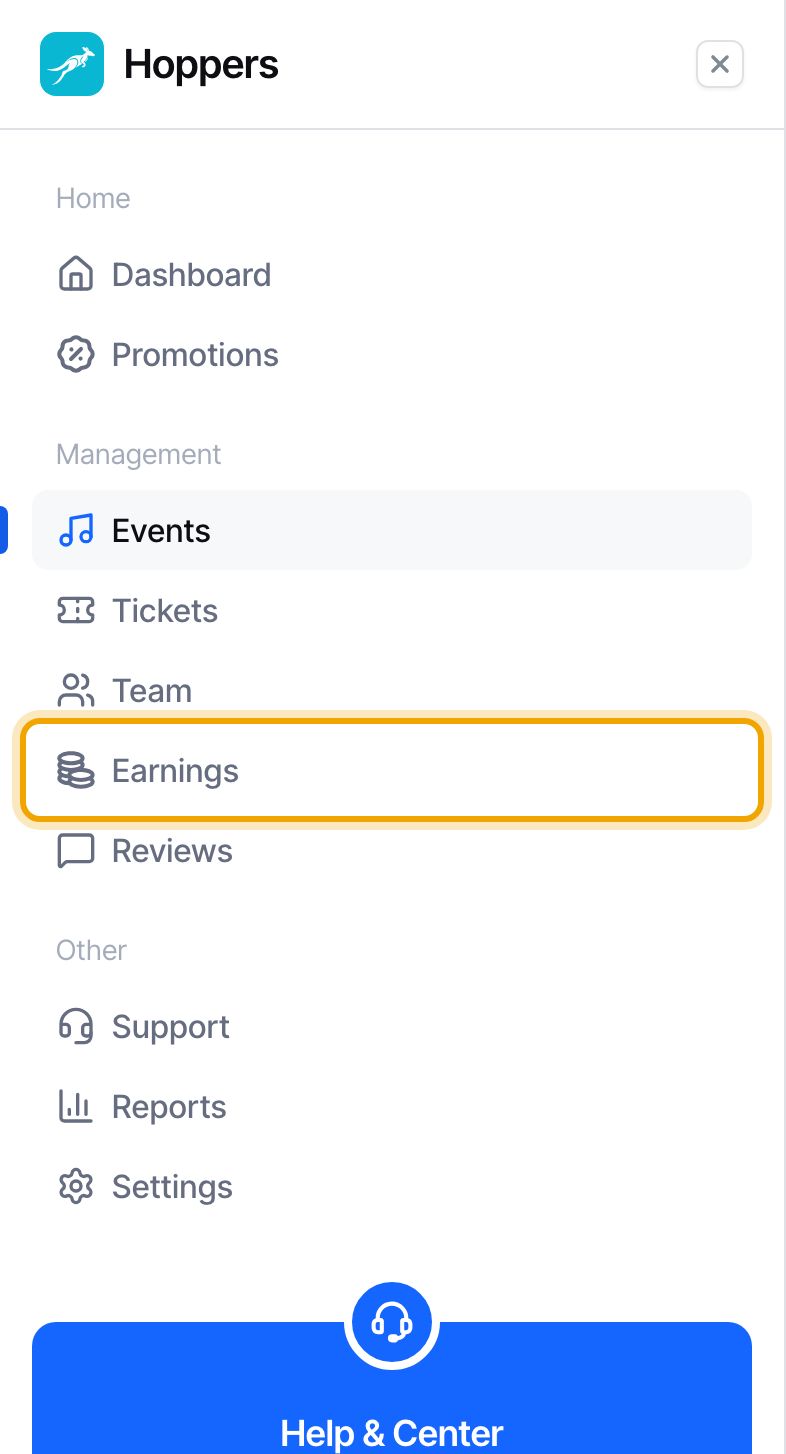
Sign in to the Hoppers dashboard and select “Earnings” in the menu. On a phone, tap the menu icon at the top left first. Refunds are handled from the payments of each event.
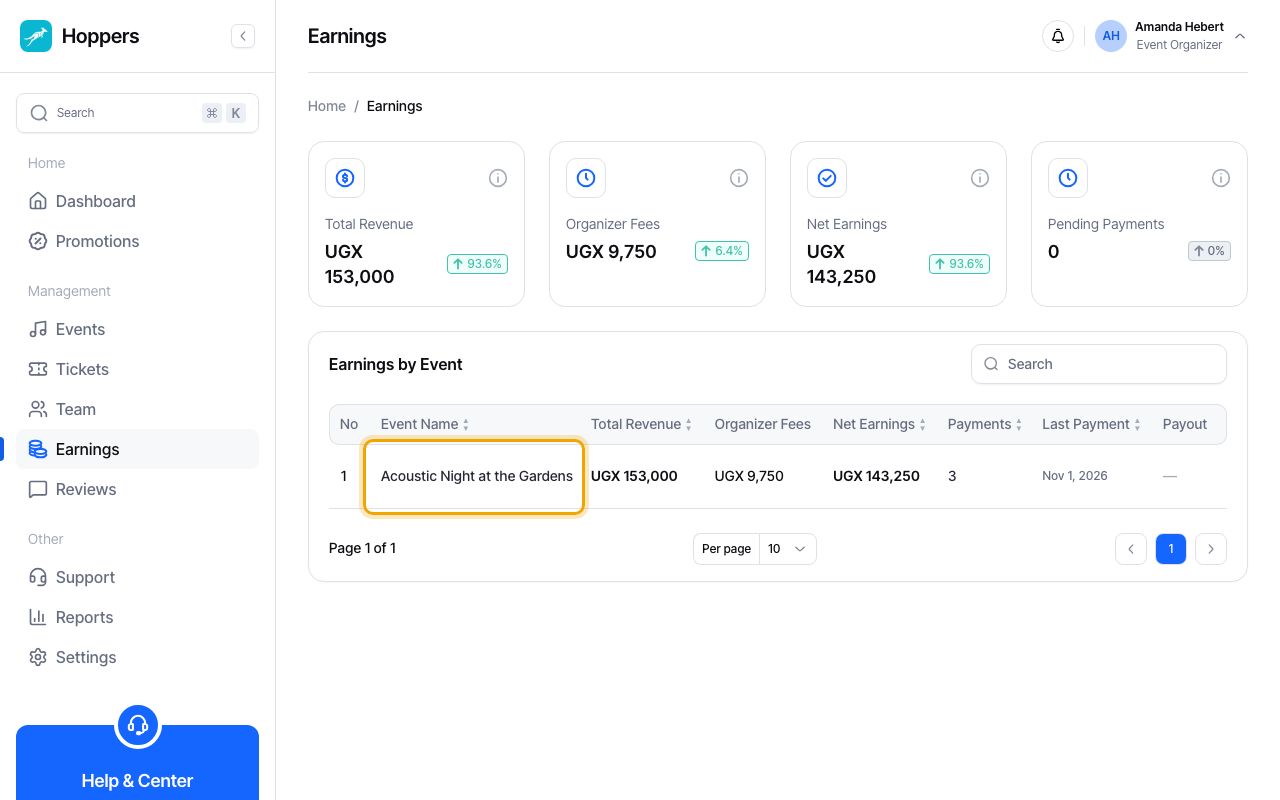
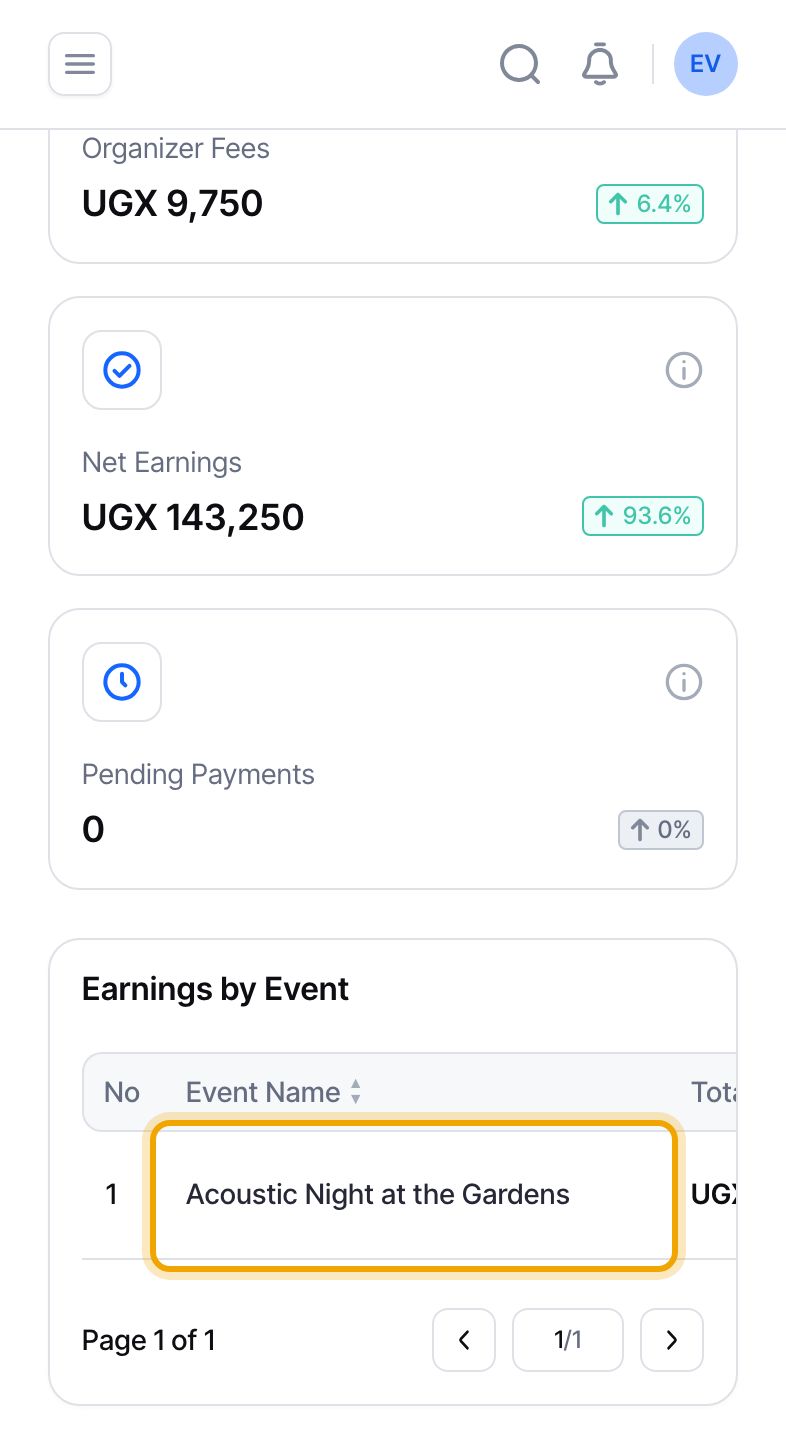
Under “Earnings by Event”, select the name of your event. Its payments open in a table below your totals.
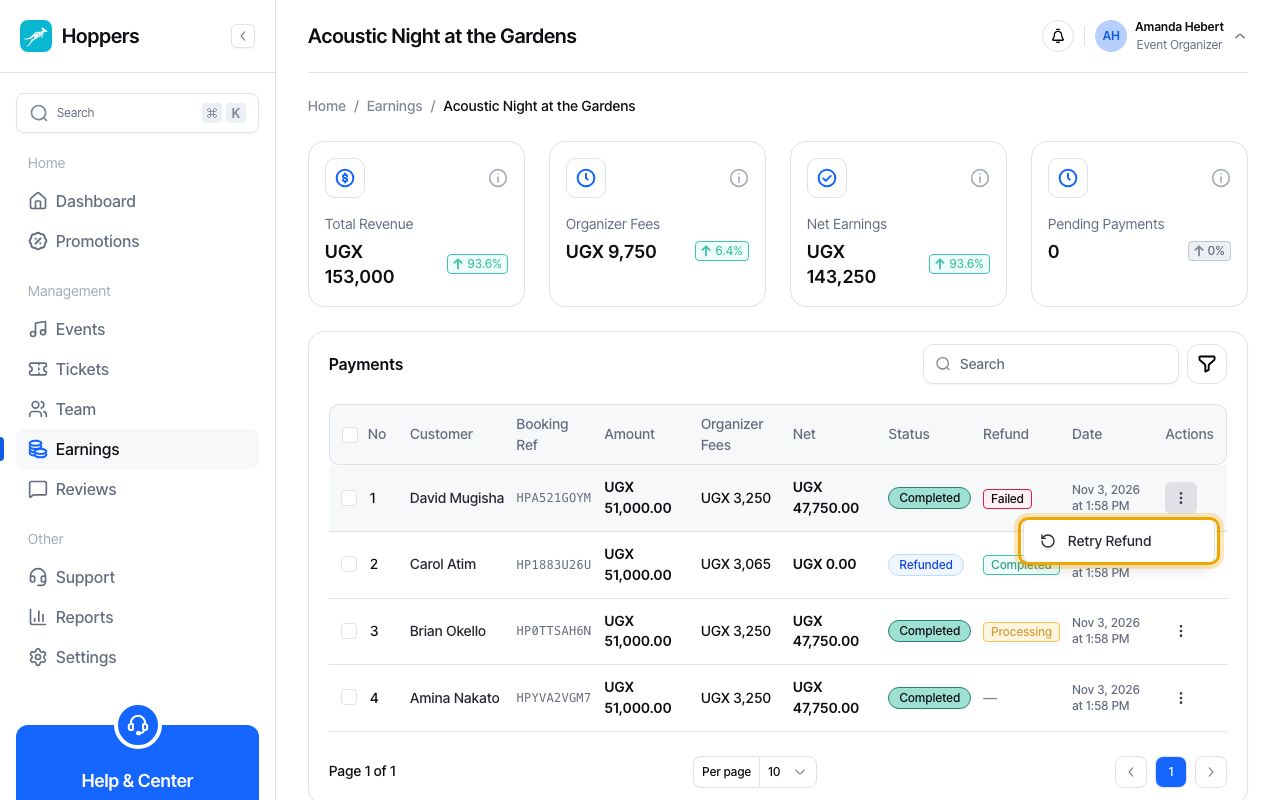
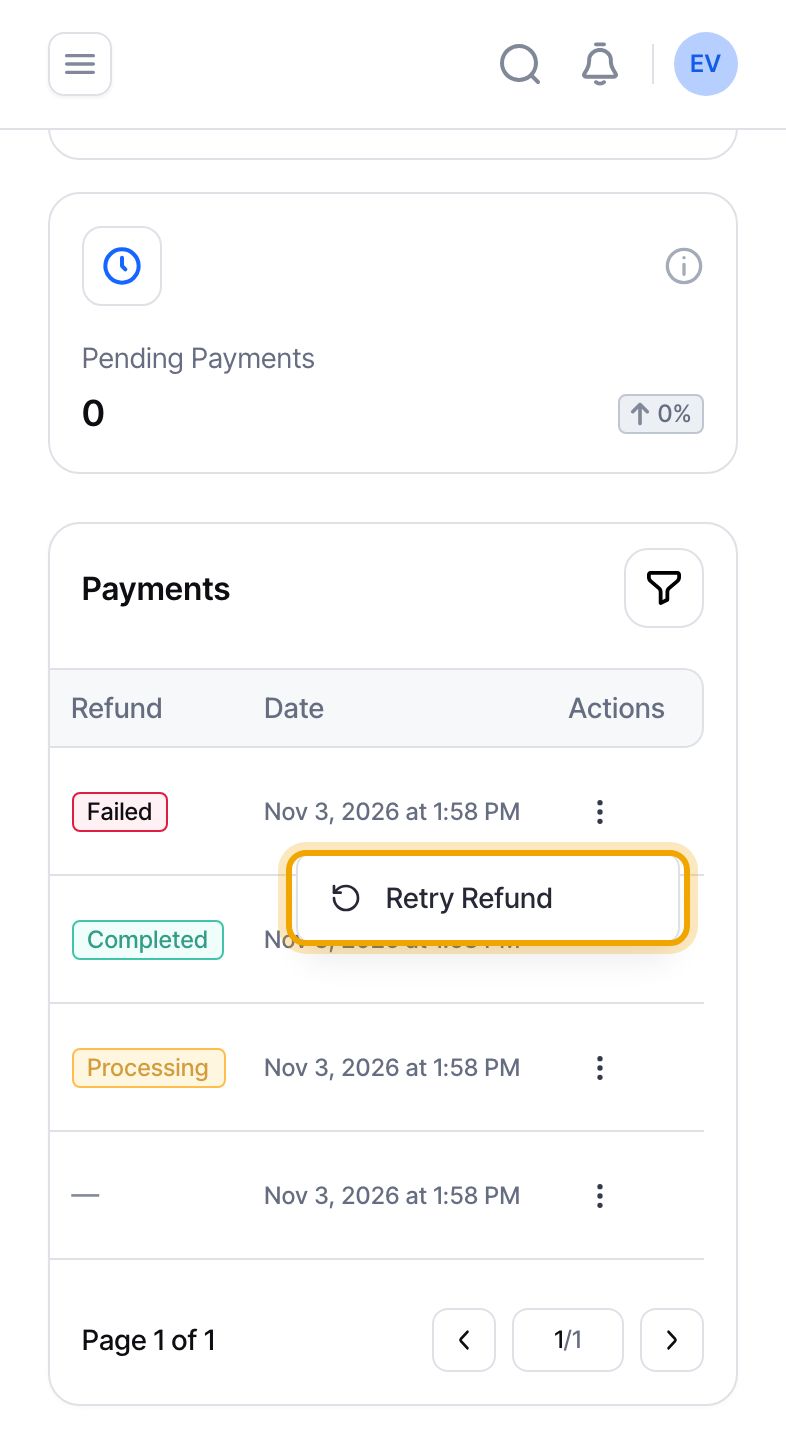
Each row is one payment. The “Refund” column shows where a refund stands. “Pending” means it is queued. “Processing” means it has been sent and we are waiting for the payment provider to confirm. “Completed” means the money went back to the buyer, and the payment then shows “Refunded”. “Failed” means it did not go through: on a computer, hover over the badge to see why. A dash means no refund has been made for that payment.
On a phone, slide the table sideways to see every column.
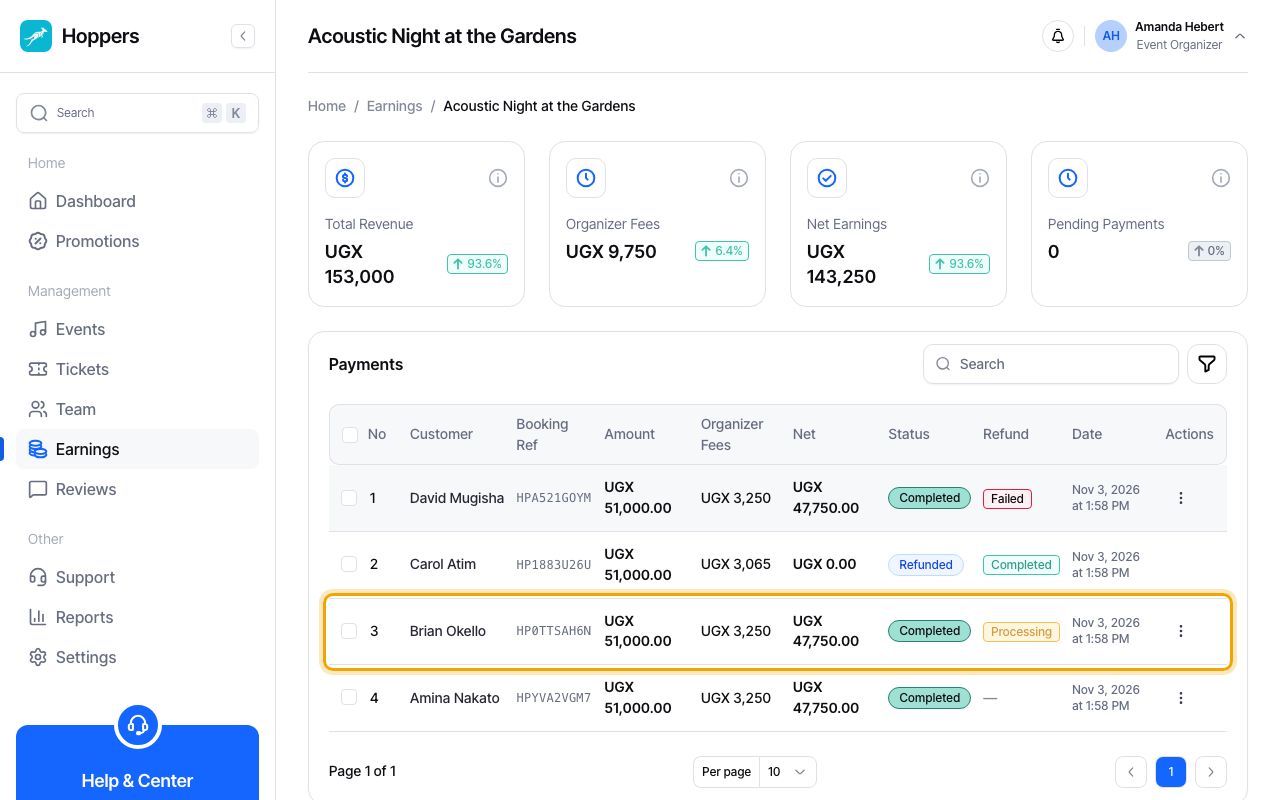
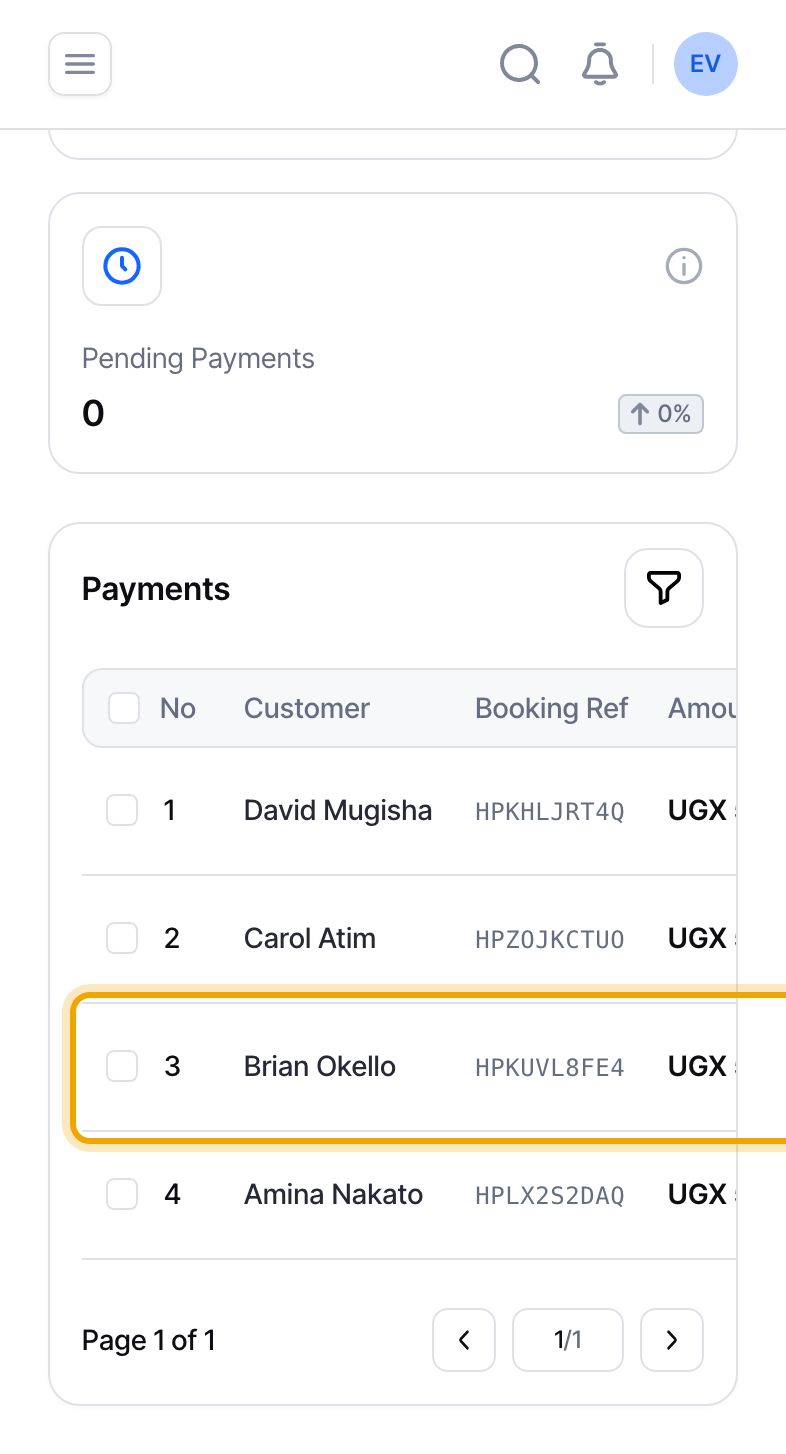
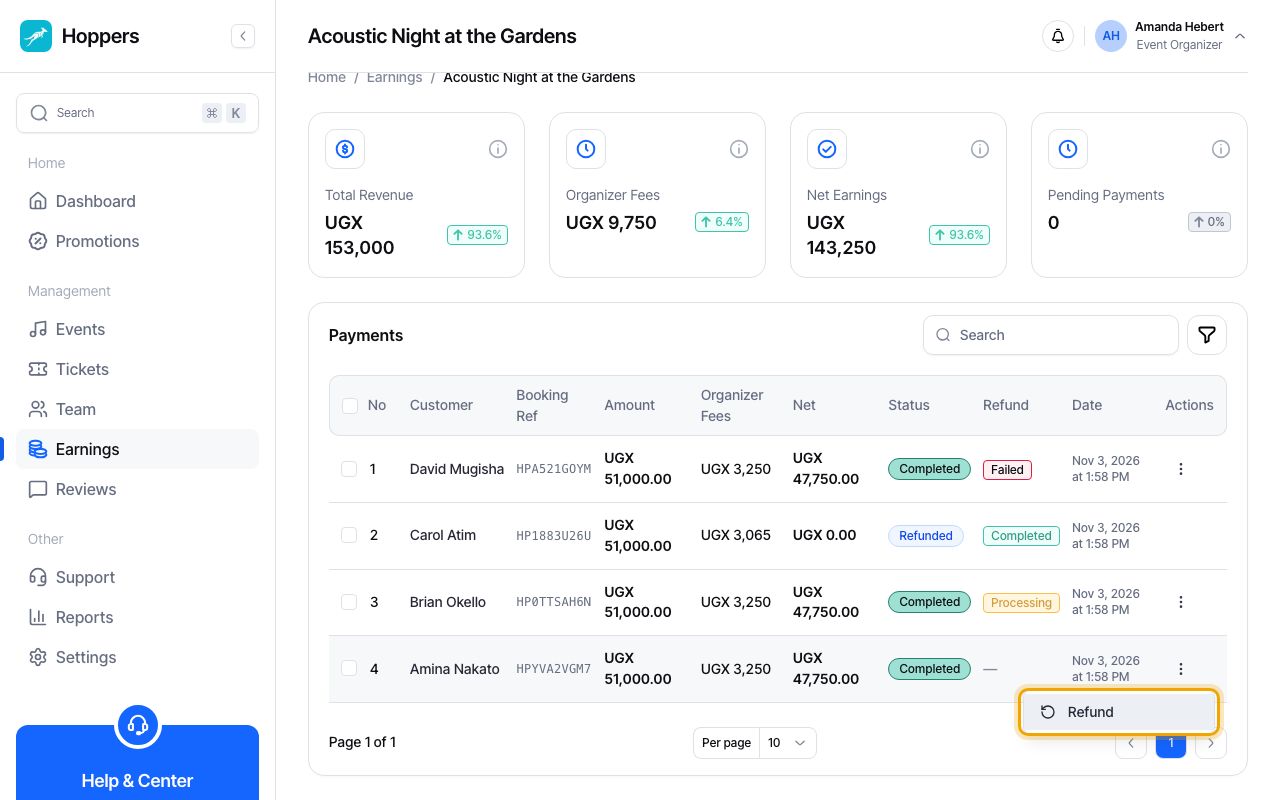
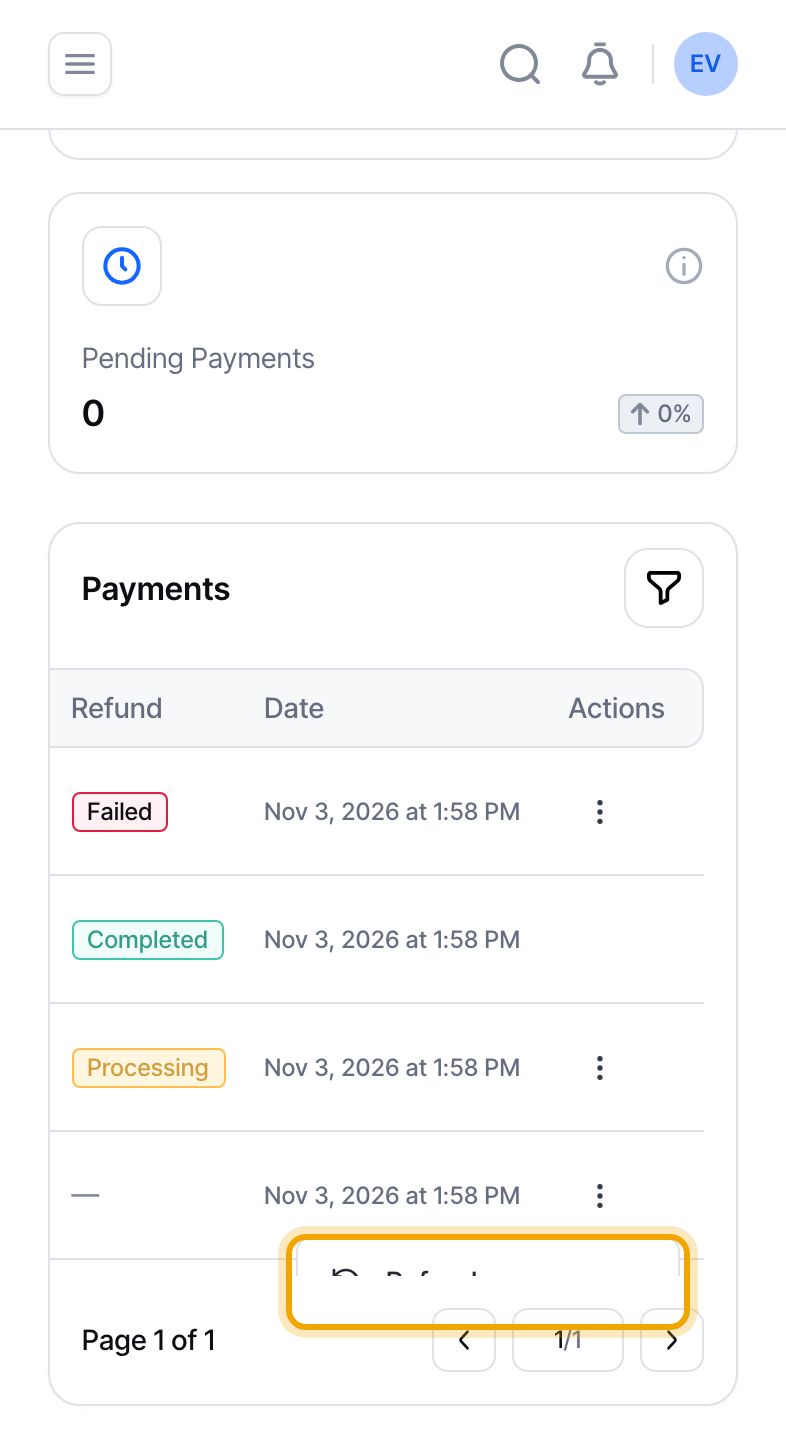
To refund one buyer, select the three dots at the end of that payment’s row, then “Refund”. This is only offered on payments that are “Completed”. If “Refund” is greyed out, hover over or tap it to see why: a refund is already in progress, a payout has been requested for this event, or refunds cannot be made from here for that payment.
You decide on refunds yourself. There is no separate approval by Hoppers.
The “Refund payment” panel shows the money before you confirm. “Your earnings from this payment” is what you earned from that sale, which you give back. “Commission fees (refunded)” is the Hoppers commission on that sale, which Hoppers pays back toward the buyer’s refund, so it does not come out of your earnings a second time. If there is a “Refund processing fee”, it is taken from the buyer’s refund, not from you. “Refund amount” is what the buyer receives.
The buyer does not get back the booking fee or the payment processing fee on the ticket price. Those were charged when they paid and are not returned. Our guide “How organizer fees work” explains them.
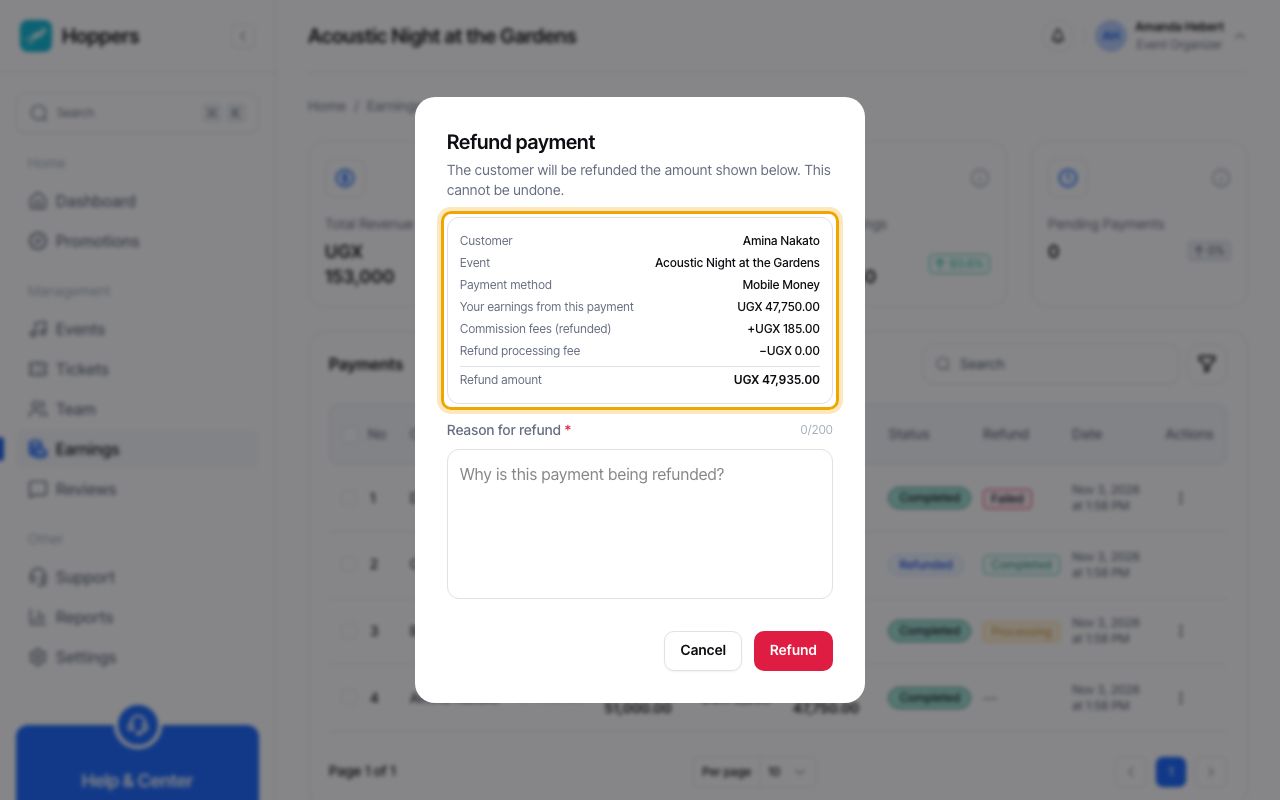
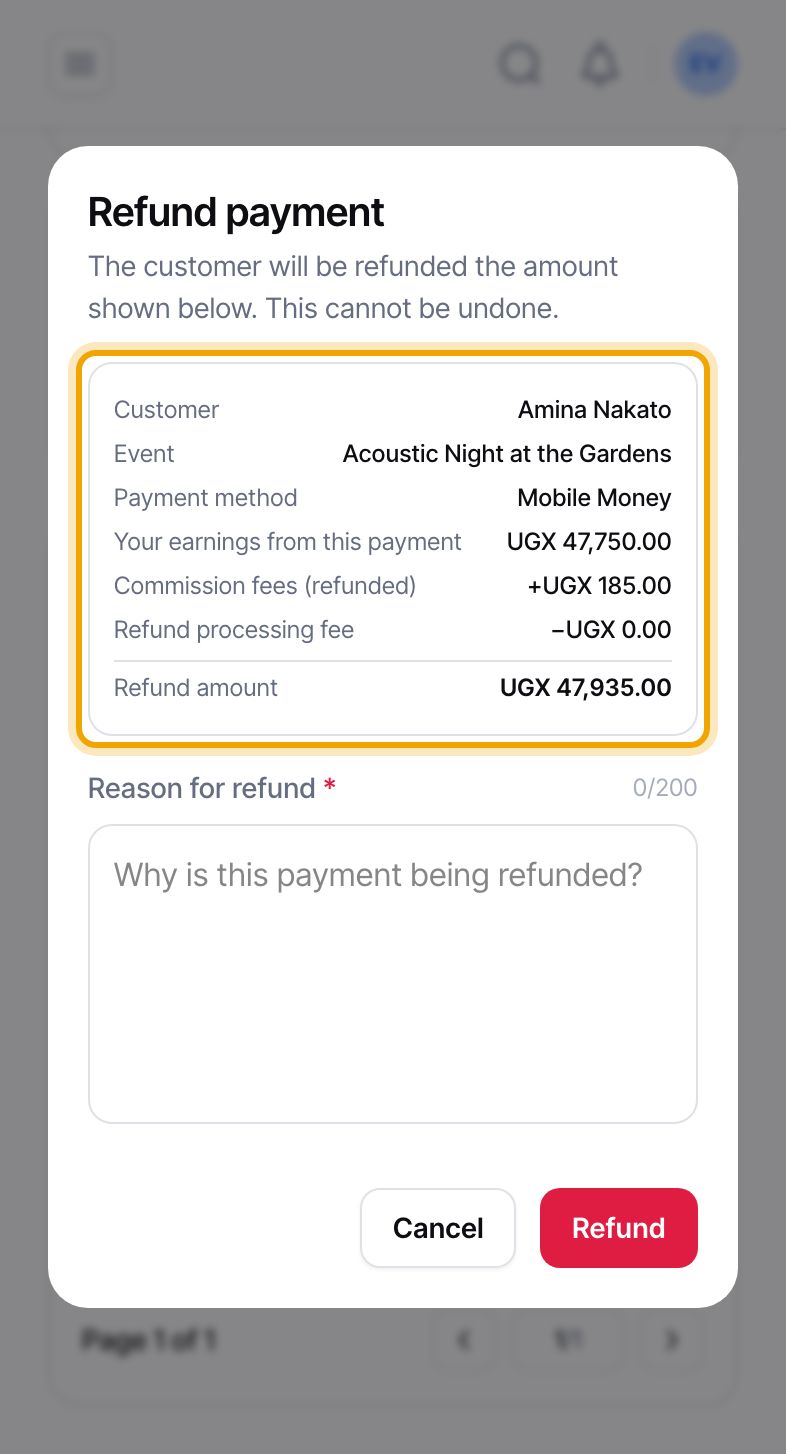
Type the “Reason for refund”. A reason is required, and the “Refund” button stays greyed out until you write one.
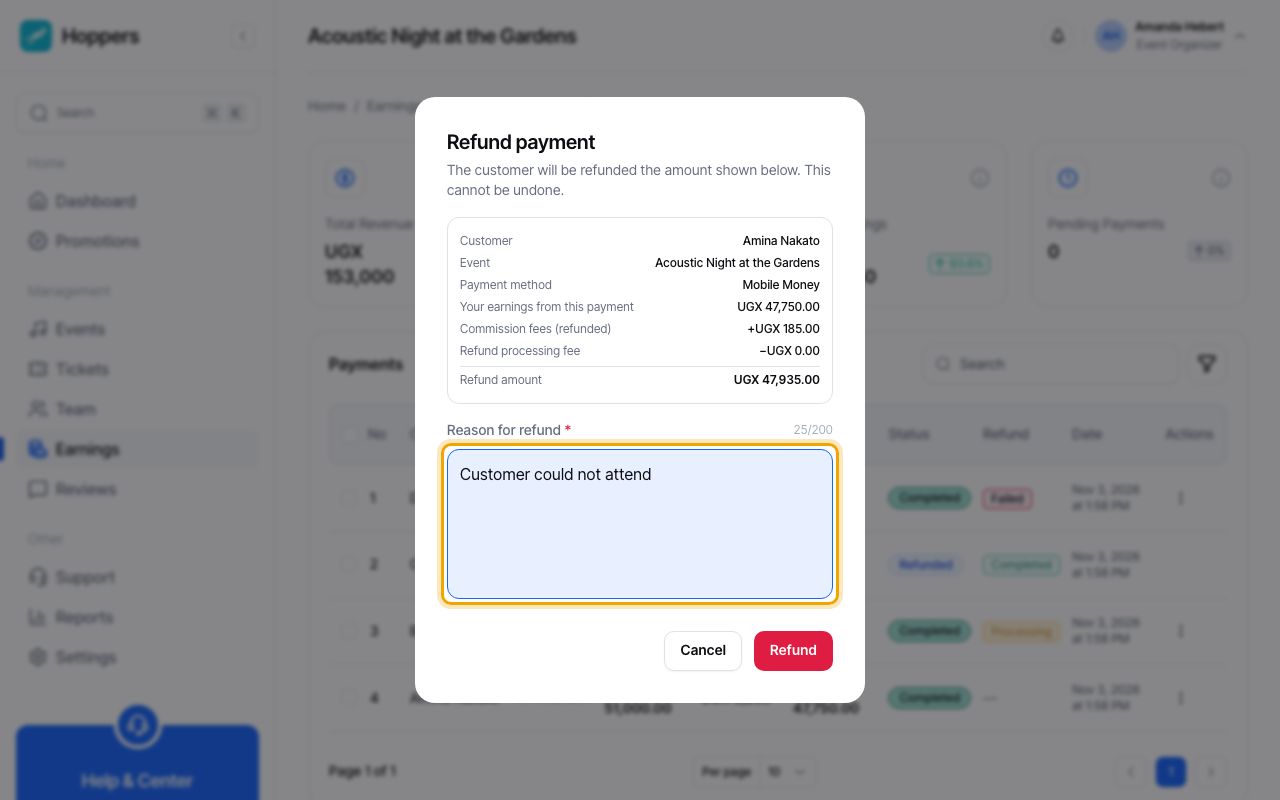
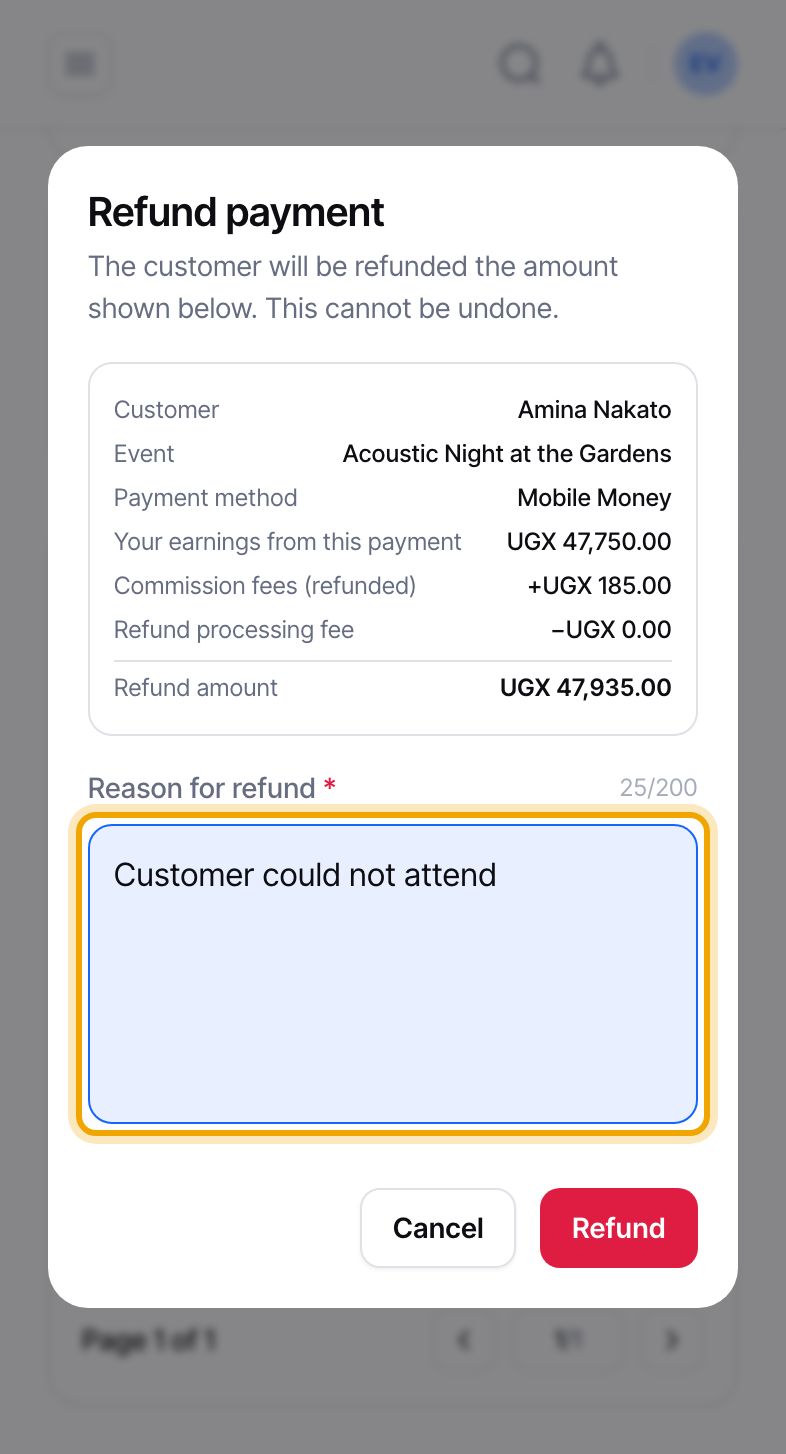
When you are sure, select “Refund”. This cannot be undone. Only a full refund is available, and a payment can only have one active refund at a time. The money goes back the way the buyer paid, for example to their mobile money number, and the buyer is told by email that a refund is on its way.
Once a payout has been requested for an event, its payments can no longer be refunded here. Contact support if you need to refund one.
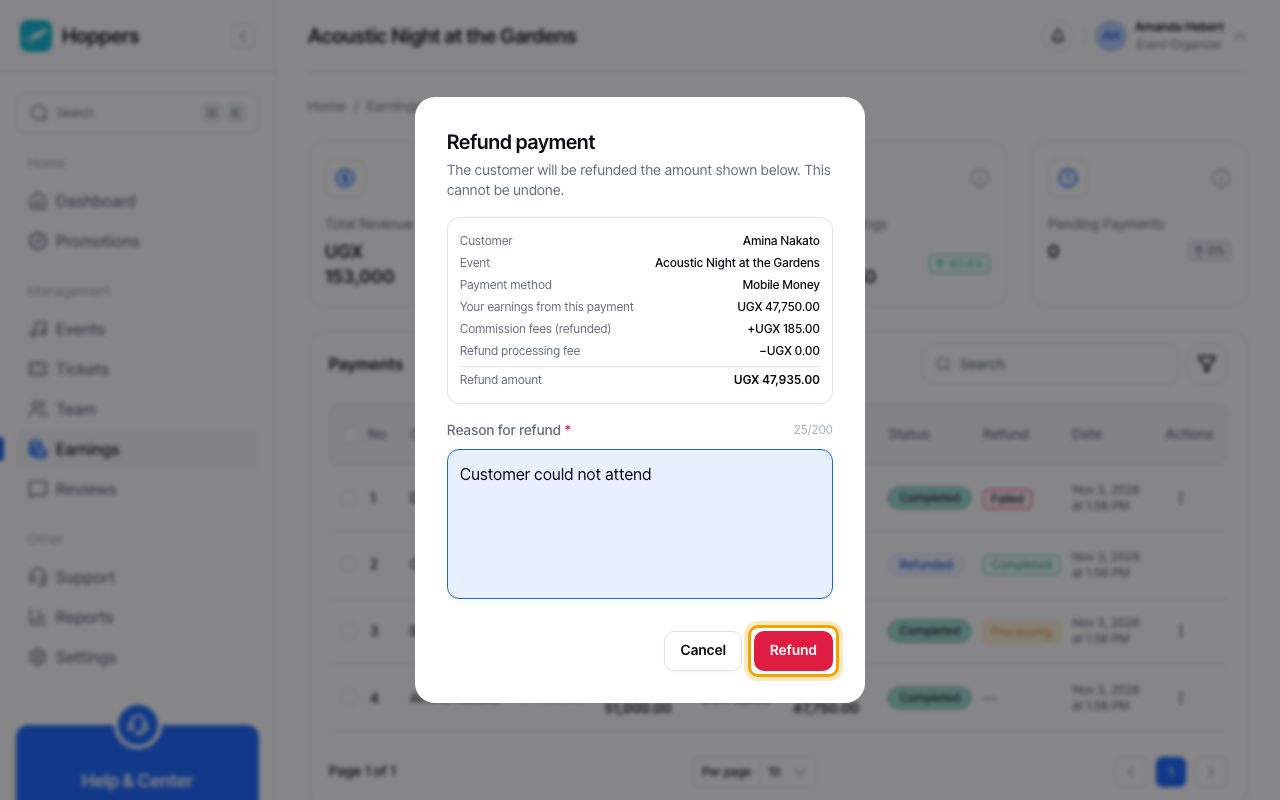
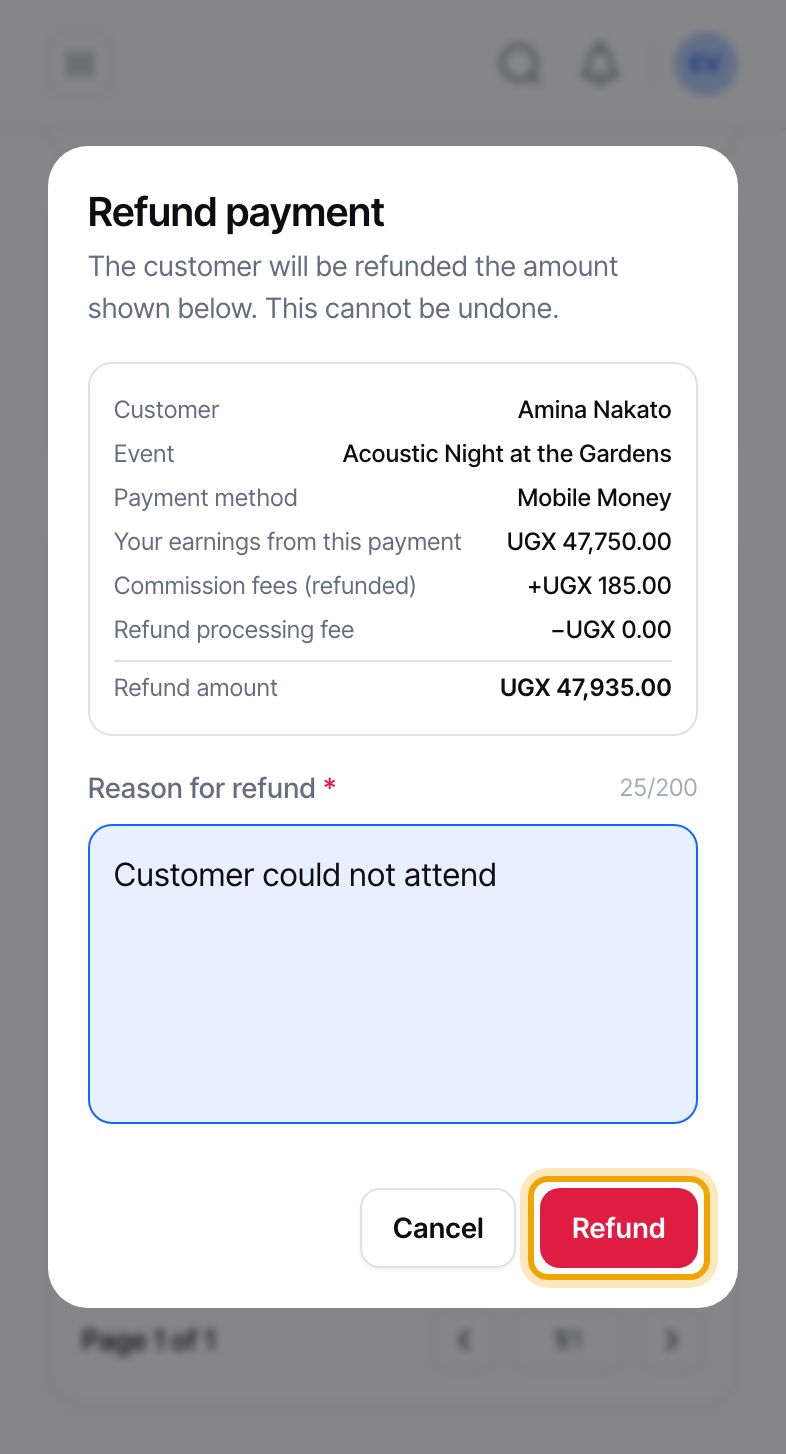
If a refund shows “Failed”, select the three dots on its row again. The menu now says “Retry Refund”. Select it, check the details and confirm as before.
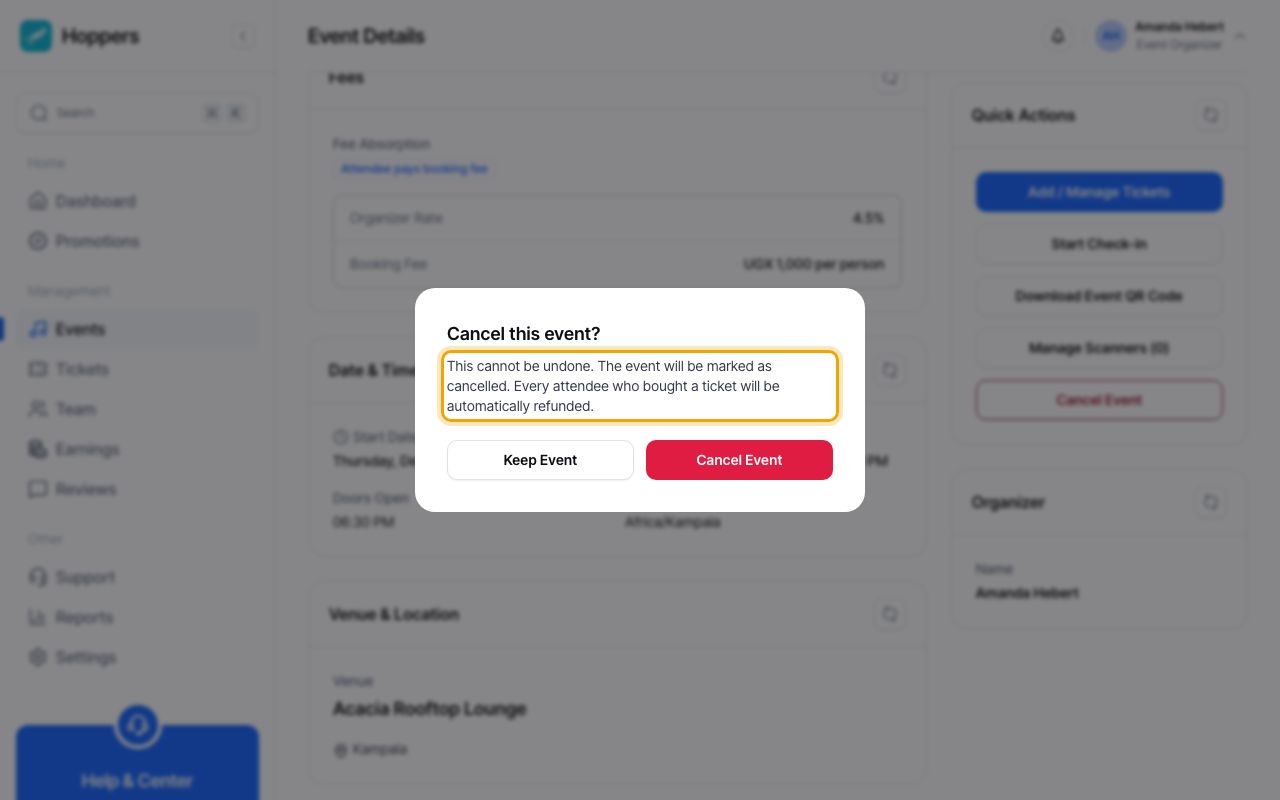
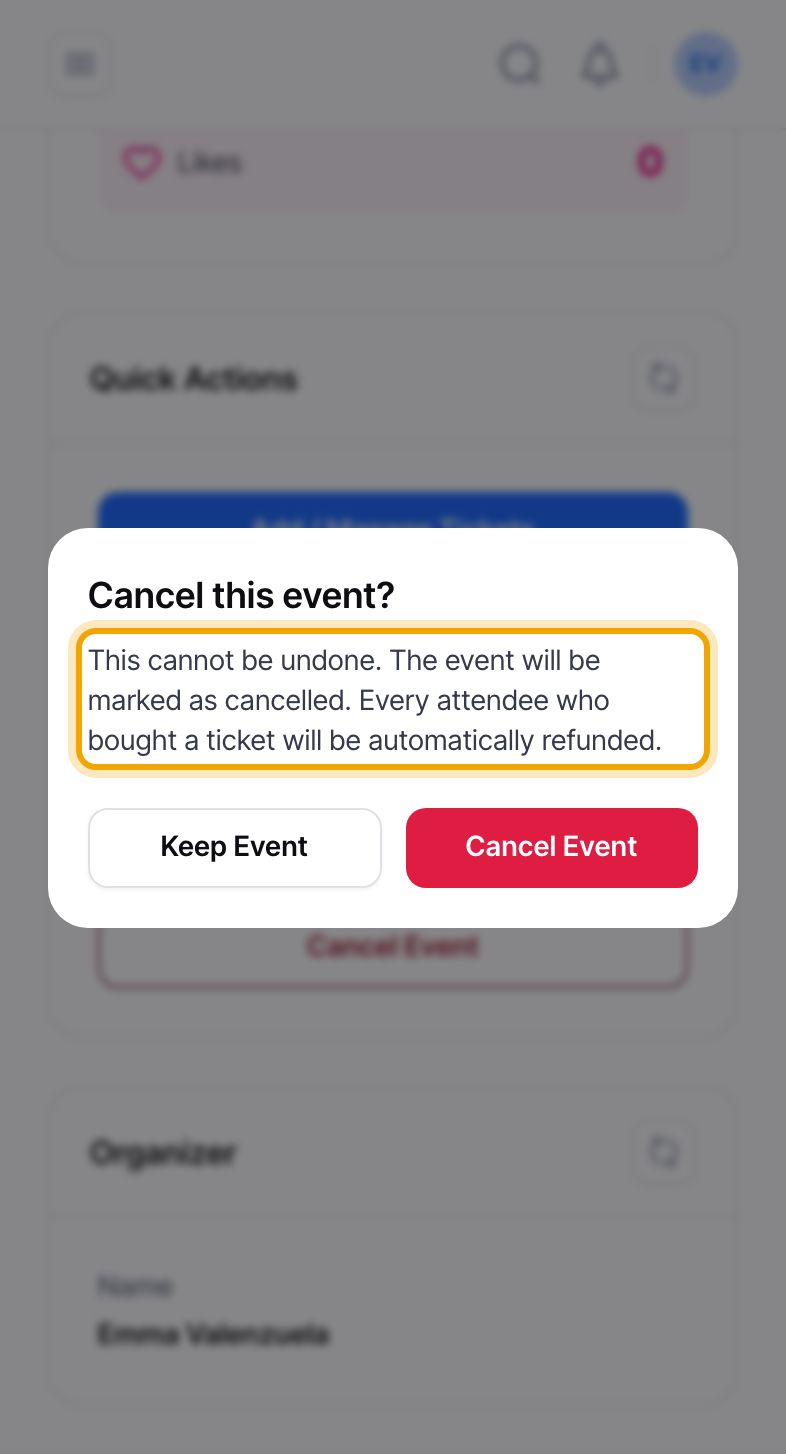
To cancel an event, open it and select “Cancel Event”. This is available for a published event that has not ended. The panel “Cancel this event?” warns that every buyer who paid through Hoppers is refunded automatically. Select “Cancel Event” to confirm, or “Keep Event” to go back. This cannot be undone.
Refunds for a cancelled event are worked out the same way as a single refund, and they are sent in the background a few at a time, so they can take a while. You can follow them in the “Refund” column.
The buyer does not get back the booking fee or the payment processing fee on the ticket price, and any refund processing fee comes out of the buyer’s refund. You give back what you earned from that sale. Hoppers gives back its commission on that sale and keeps the booking fee.
Hoppers can only refund payments it collected. If you sell tickets outside Hoppers, you refund those buyers yourself, and cancelling the event does not refund anyone through Hoppers. Free events have nothing to refund.
The refund policy is part of your event details. Following it is up to you, because you decide on each refund. Changing the policy on a published event waits for the Hoppers team to approve it.
