Hoppers
VenuesList your eventGet the app
Hoppers

Discover, plan and experience the best events across Uganda.

Get it onGoogle Play
Download on theApp Store

Discover

  • Browse events
  • This weekend
  • Free events
  • Places to go out
  • Categories

For organizers

  • Sell tickets
  • Pricing
  • Create account
  • Sign in

For venues

  • List your venue
  • Create account
  • Sign in

Company

  • About
  • Contact
  • FAQ
  • Help
  • Privacy
  • Terms

Cities

  • Arua
  • Entebbe
  • Fort Portal
  • Gulu
  • Hoima
  • Jinja
  • Kampala
  • Lira
  • Masaka
  • Mbale
  • Mbarara
  • MTN MoMo
  • Airtel Money
  • Visa
  • Mastercard
  • Instagram
  • TikTok
  • Snapchat

© 2026 Hoppers Ltd. All rights reserved.

  1. 1Get set up

    • Create your organizer account
    • Get your organizer profile verified
    • Set up your payout account
  2. 2Create your event

    • Create your event
    • Set up tickets and prices
    • Submit your event for approval
  3. 3Sell

    • Track your sales
  4. 4Event day

    • Scan tickets at the door
  5. 5Get paid

    • How organizer fees work
    • Understand your earnings
    • Request a payout
    • Refunds and cancellations

Help and guides / Organizers

Scan tickets at the door

Check guests in on the night with a camera or by typing their ticket code, and choose which team members can scan for you.

  1. 1

    Open check-in

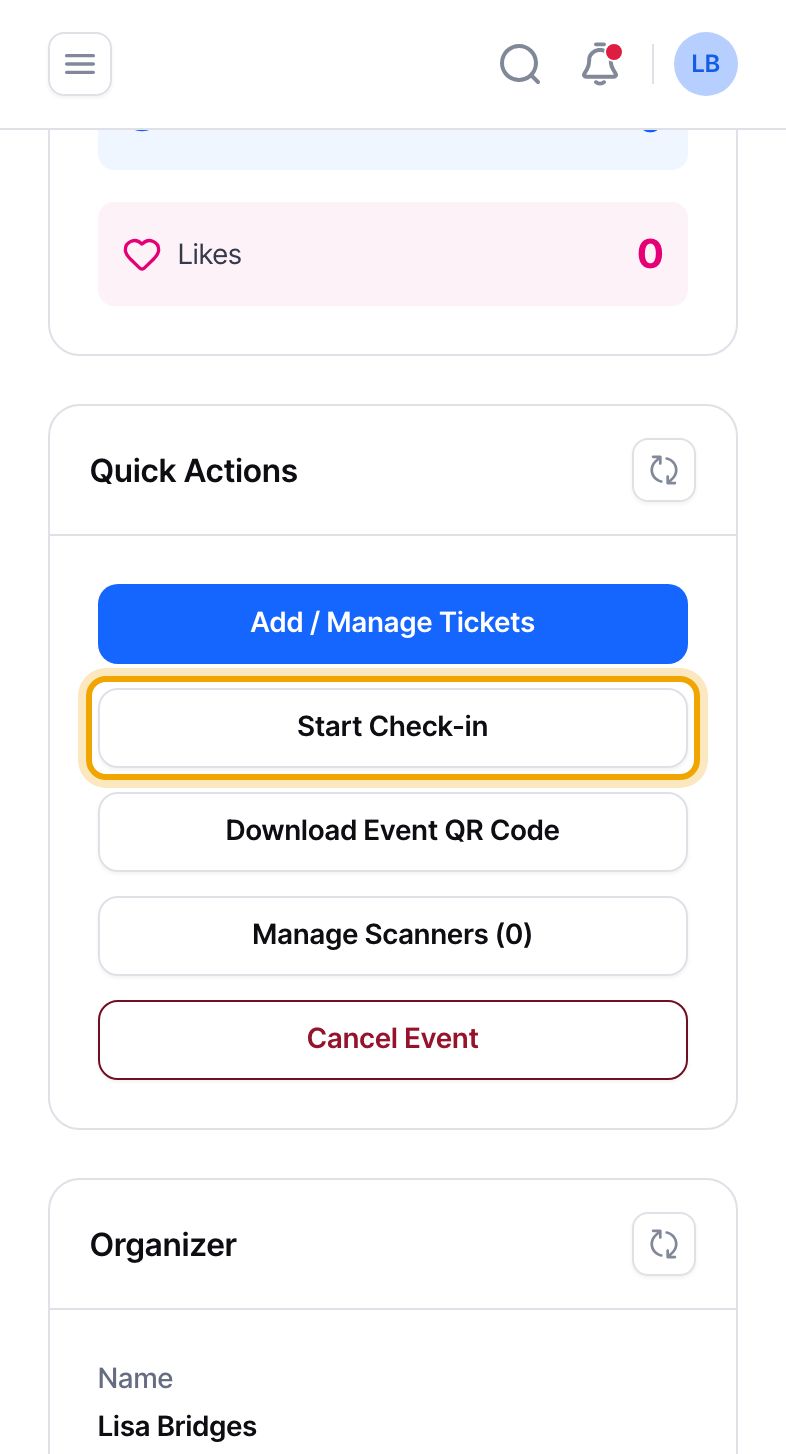
    Open your event from the “Events” page. In the “Quick Actions” box, select “Start Check-in”. On a phone the box is below the event details.

    Check-in opens when the doors open, or two hours before the start if you did not set a doors-open time. It closes when the event ends.
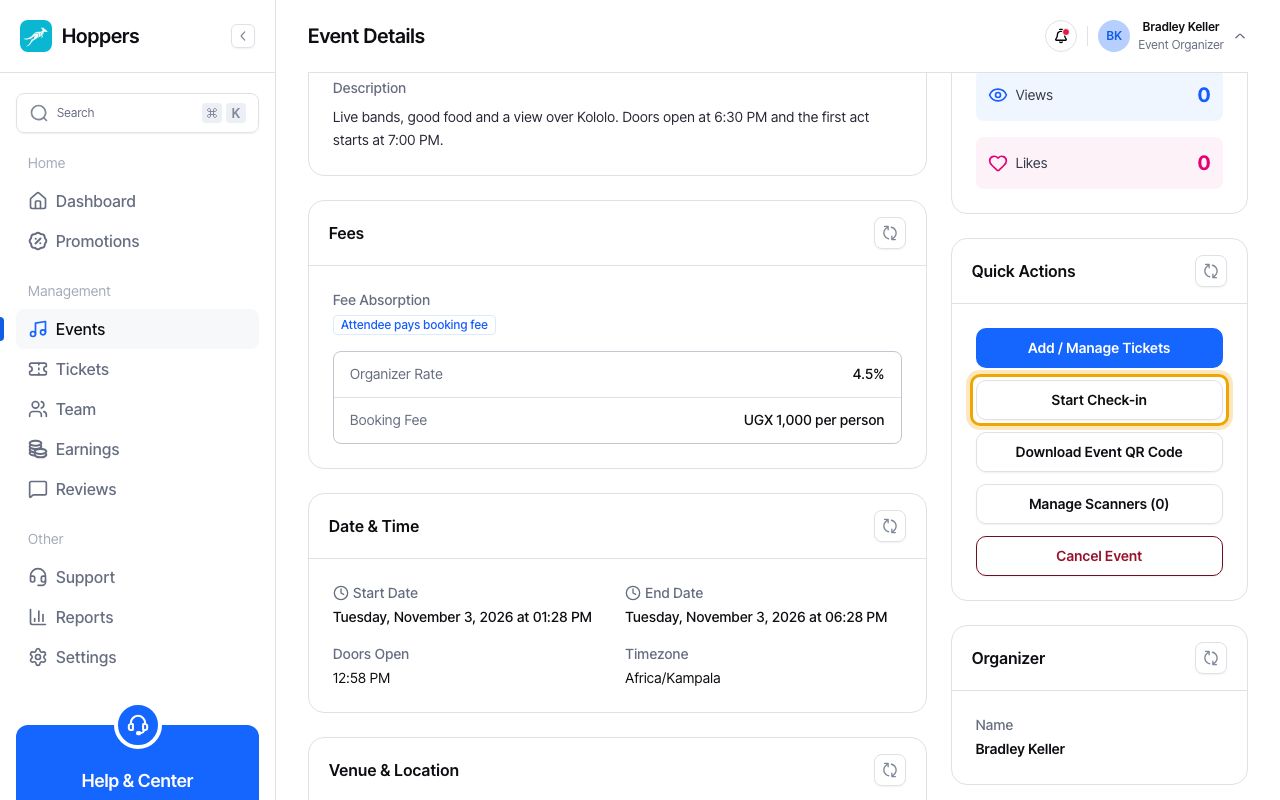
    Open check-in: Hoppers dashboard on a computer
    Open check-in: Hoppers dashboard on a phone
  2. 2

    Read the counts

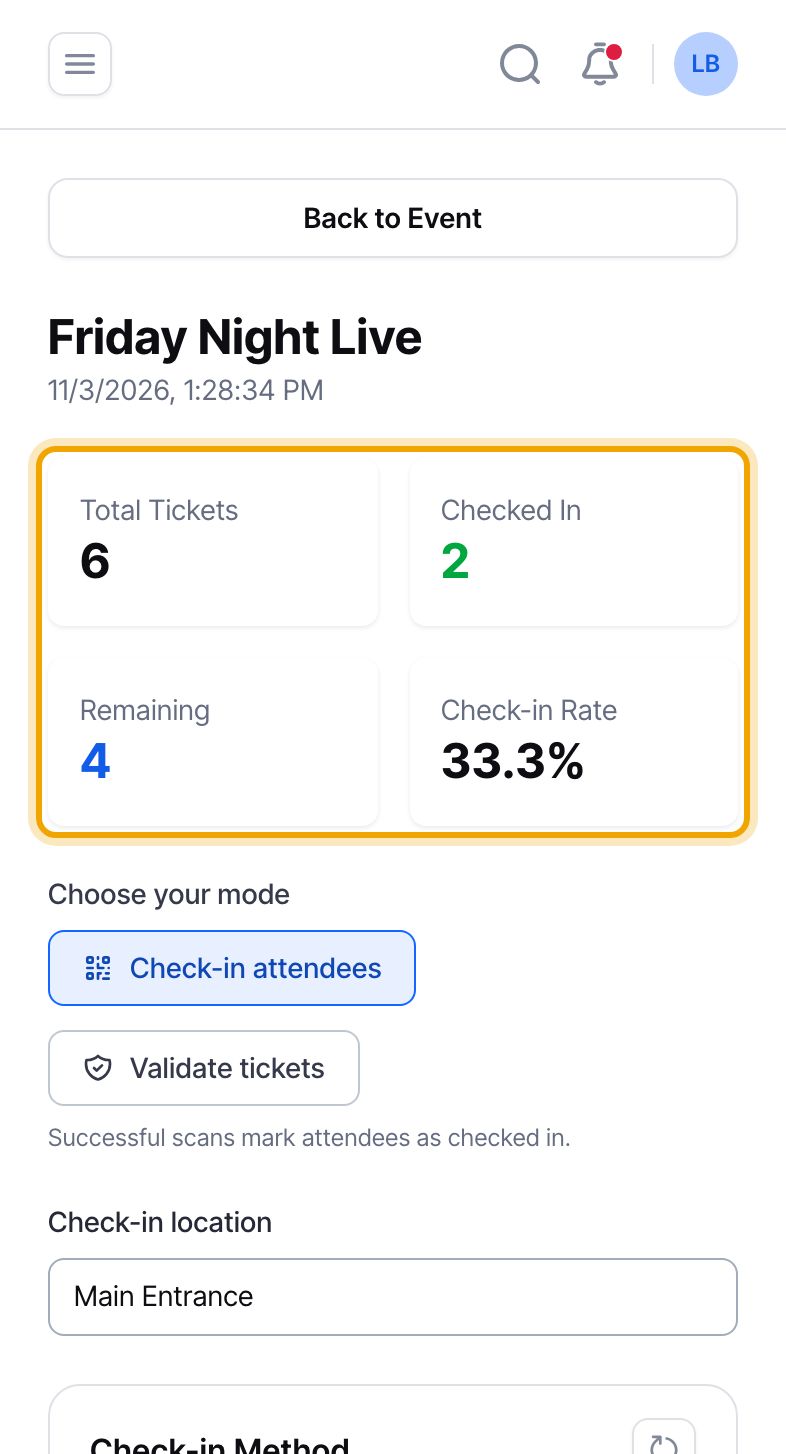
    The top of the page shows “Total Tickets”, how many are “Checked In”, how many are “Remaining”, and the “Check-in Rate”, the share of tickets already used. They update as you let people in.
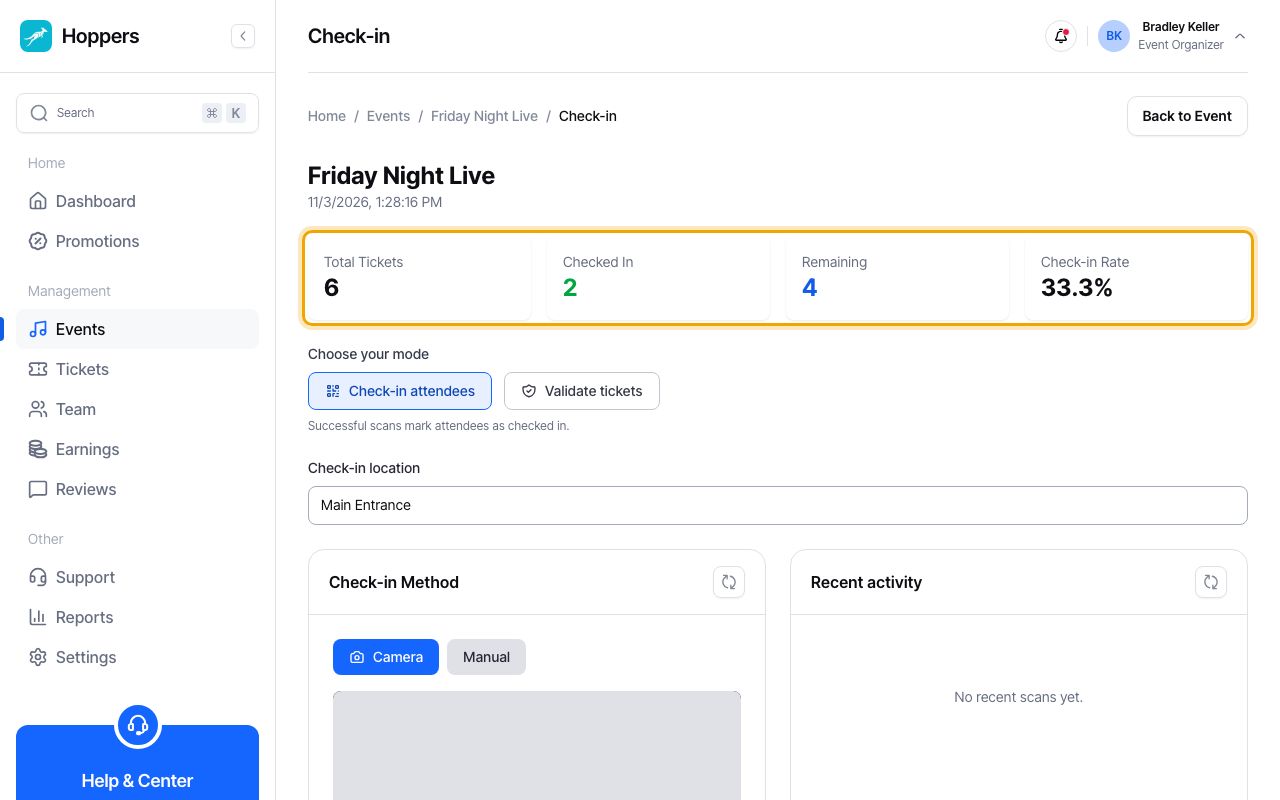
    Read the counts: Hoppers dashboard on a computer
    Read the counts: Hoppers dashboard on a phone
  3. 3

    Choose what to do

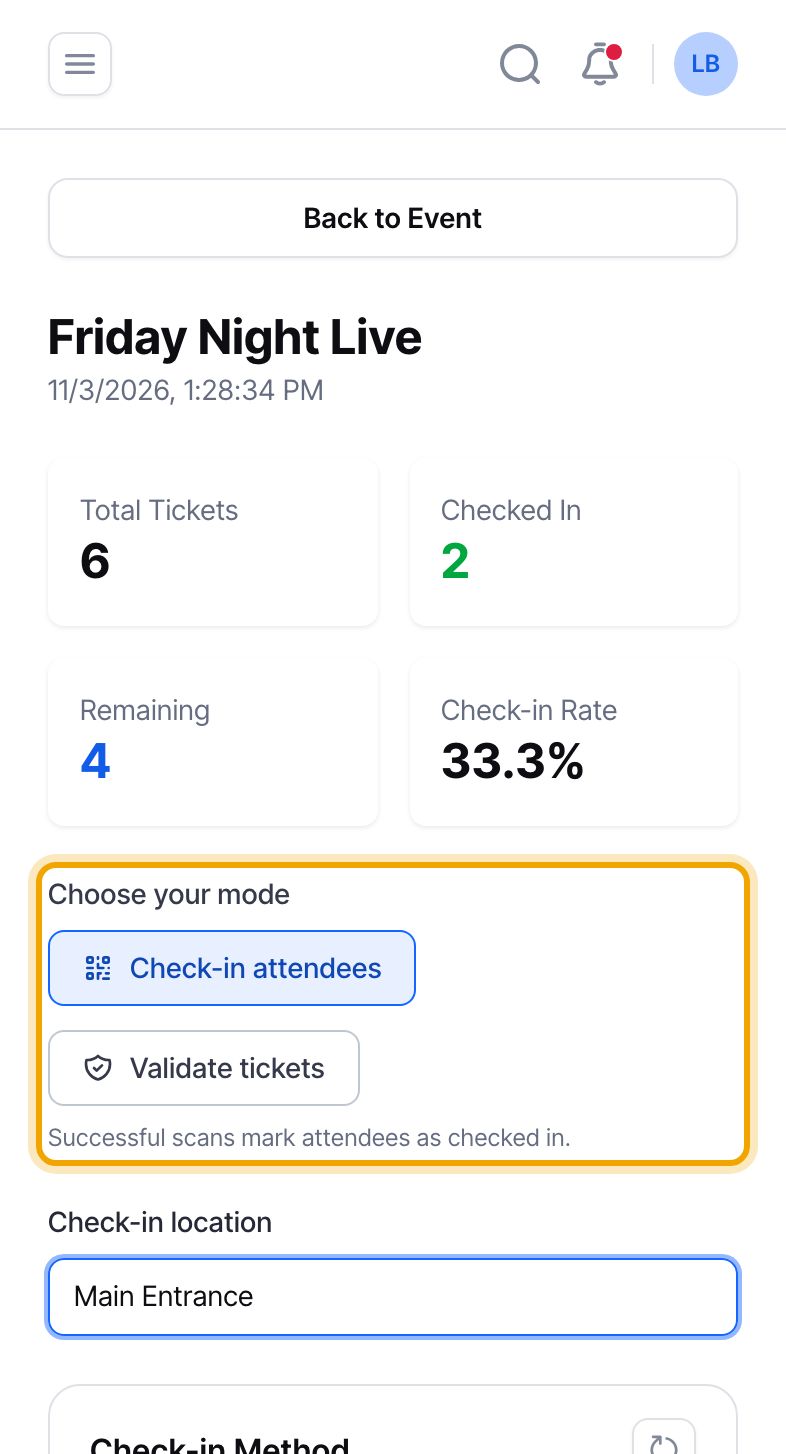
    Under “Choose your mode”, keep “Check-in attendees” to let people in: each ticket you scan is marked as used. Choose “Validate tickets” to check a ticket is real without using it. In “Check-in location” you can type which door you are at, for example Main Entrance.
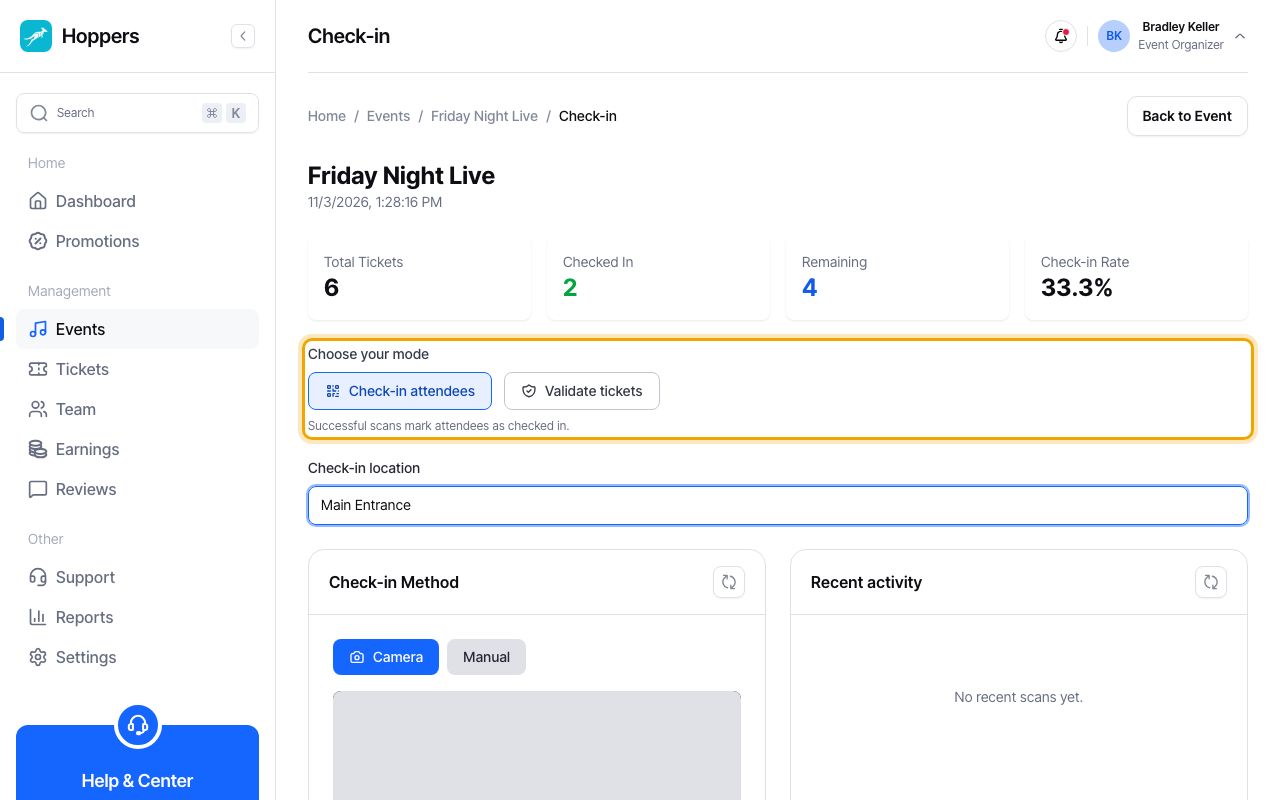
    Choose what to do: Hoppers dashboard on a computer
    Choose what to do: Hoppers dashboard on a phone
  4. 4

    Scan with your camera

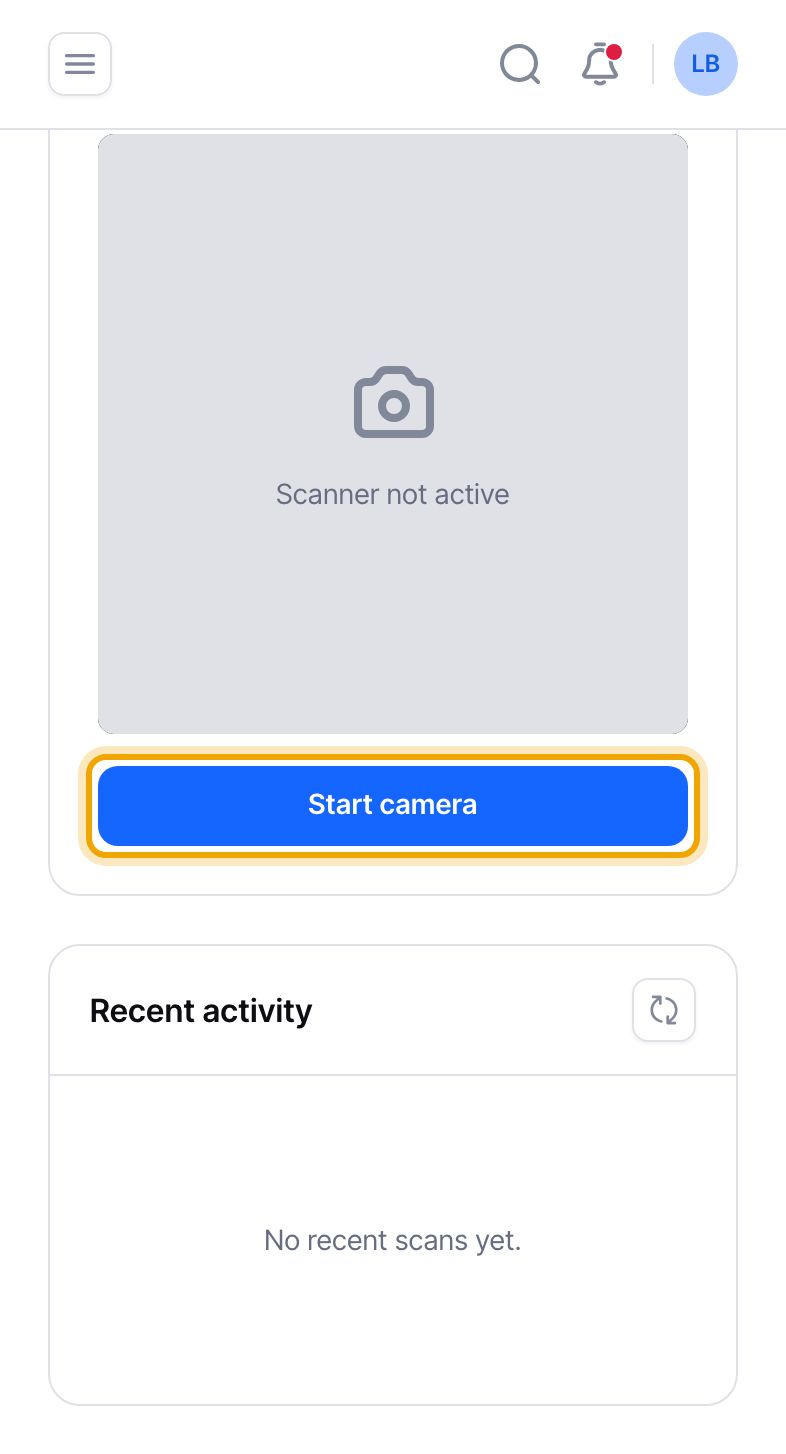
    Under “Check-in Method”, select “Camera”, then “Start camera”. Allow camera access if your browser asks. Point the camera at the QR code on the guest’s ticket. The result shows straight away.

    Use a phone or tablet with a back camera, and turn up the screen brightness in dark venues.
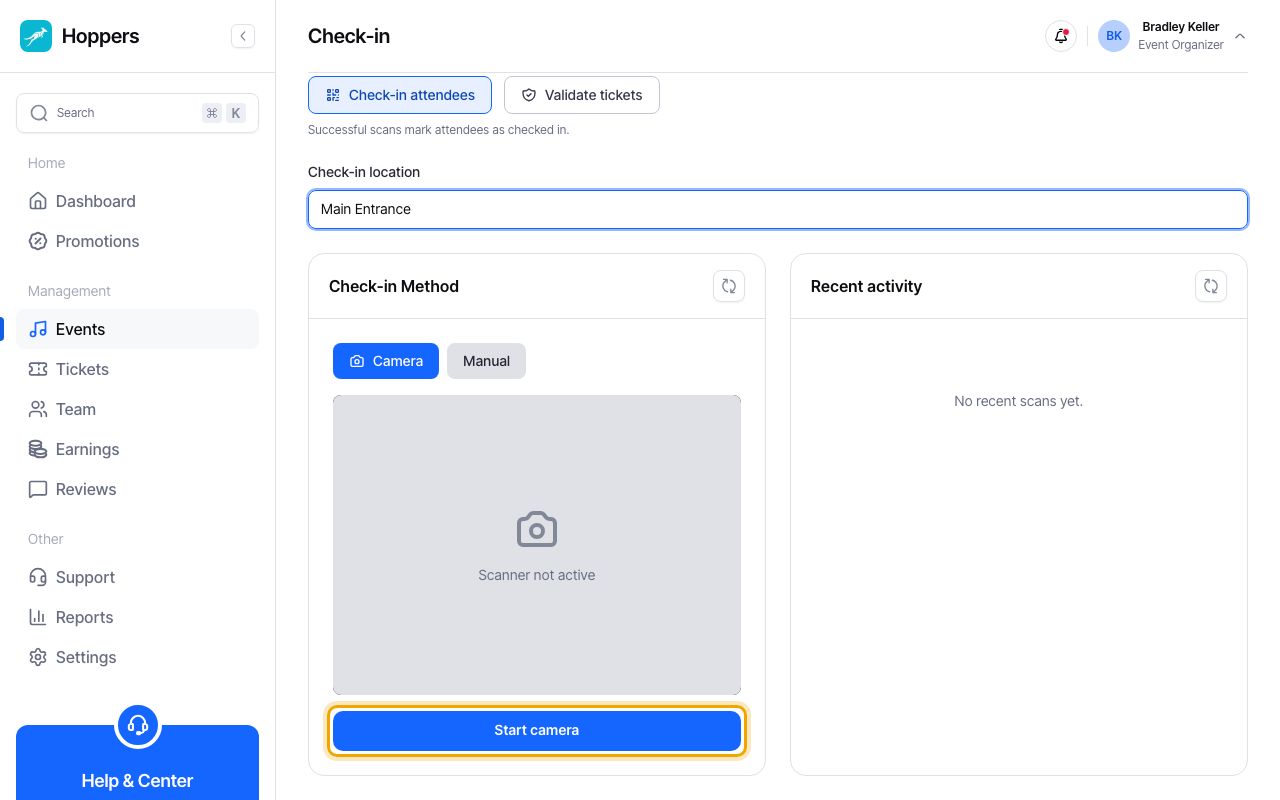
    Scan with your camera: Hoppers dashboard on a computer
    Scan with your camera: Hoppers dashboard on a phone
  5. 5

    Or type the ticket code

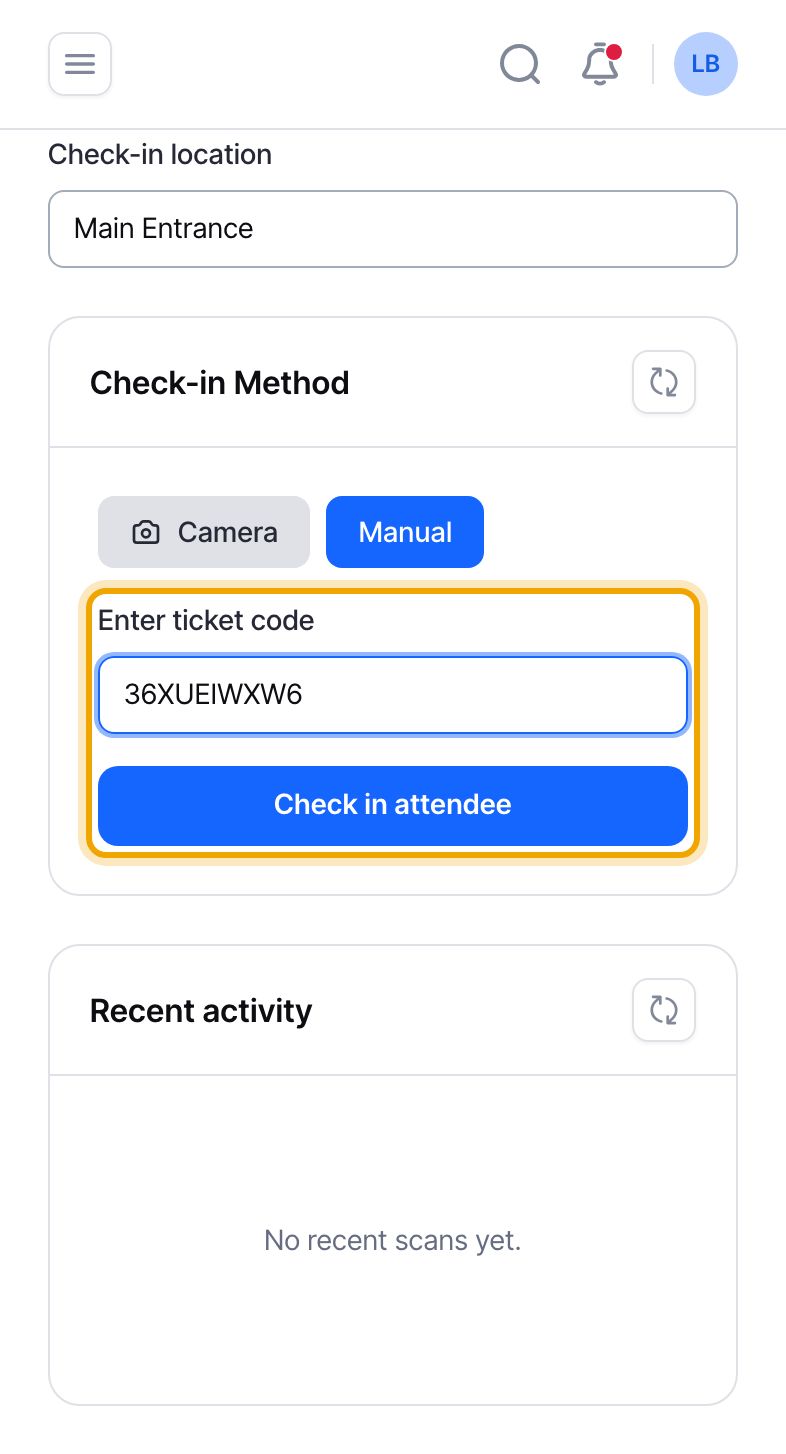
    If a QR code will not scan, select “Manual”. Type the code printed under the guest’s QR code into “Enter ticket code”, then select “Check in attendee”.
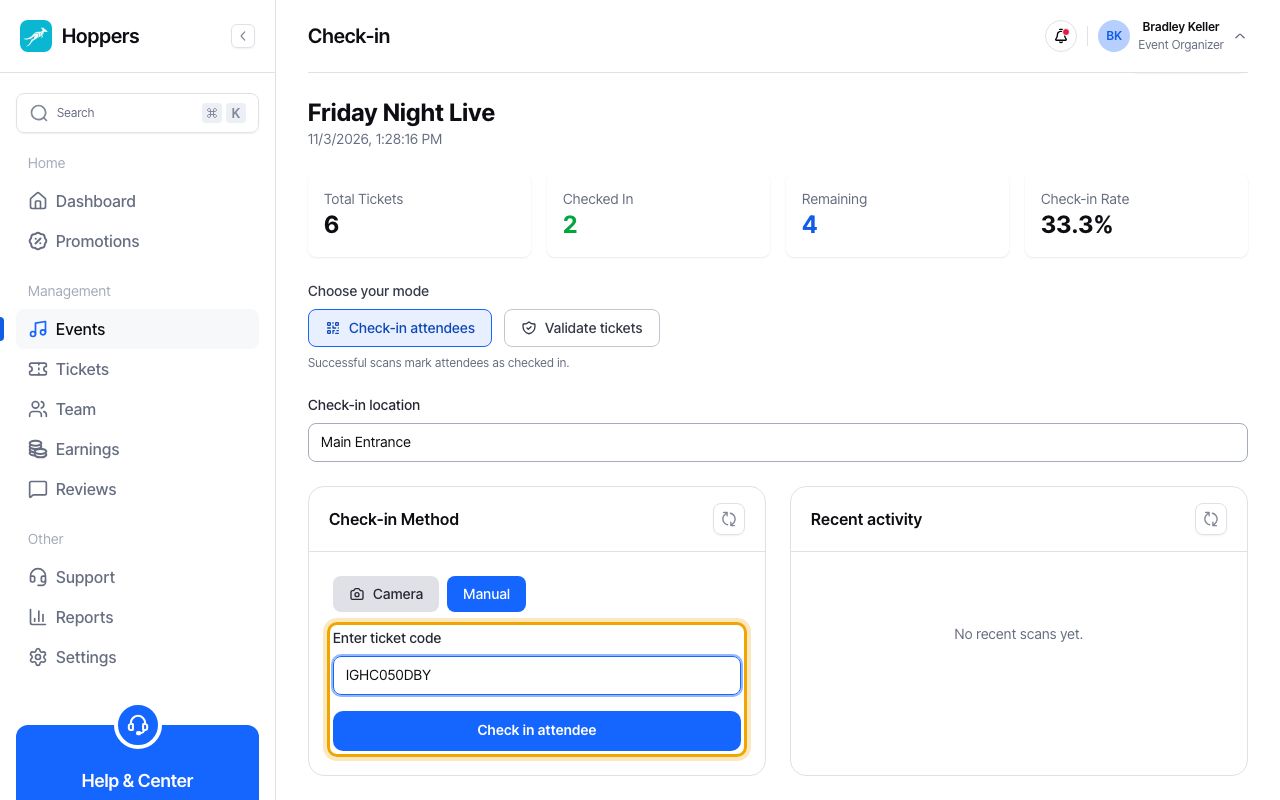
    Or type the ticket code: Hoppers dashboard on a computer
    Or type the ticket code: Hoppers dashboard on a phone
  6. 6

    Check the result

    A green “Check-in successful” card shows the guest’s name and ticket type, and the check-in appears under “Recent activity”. A red card explains the problem, for example “Ticket already used” for a ticket that has been scanned before.

    A ticket can only be used once. If someone shows a ticket that was already used, the card says when it was checked in.
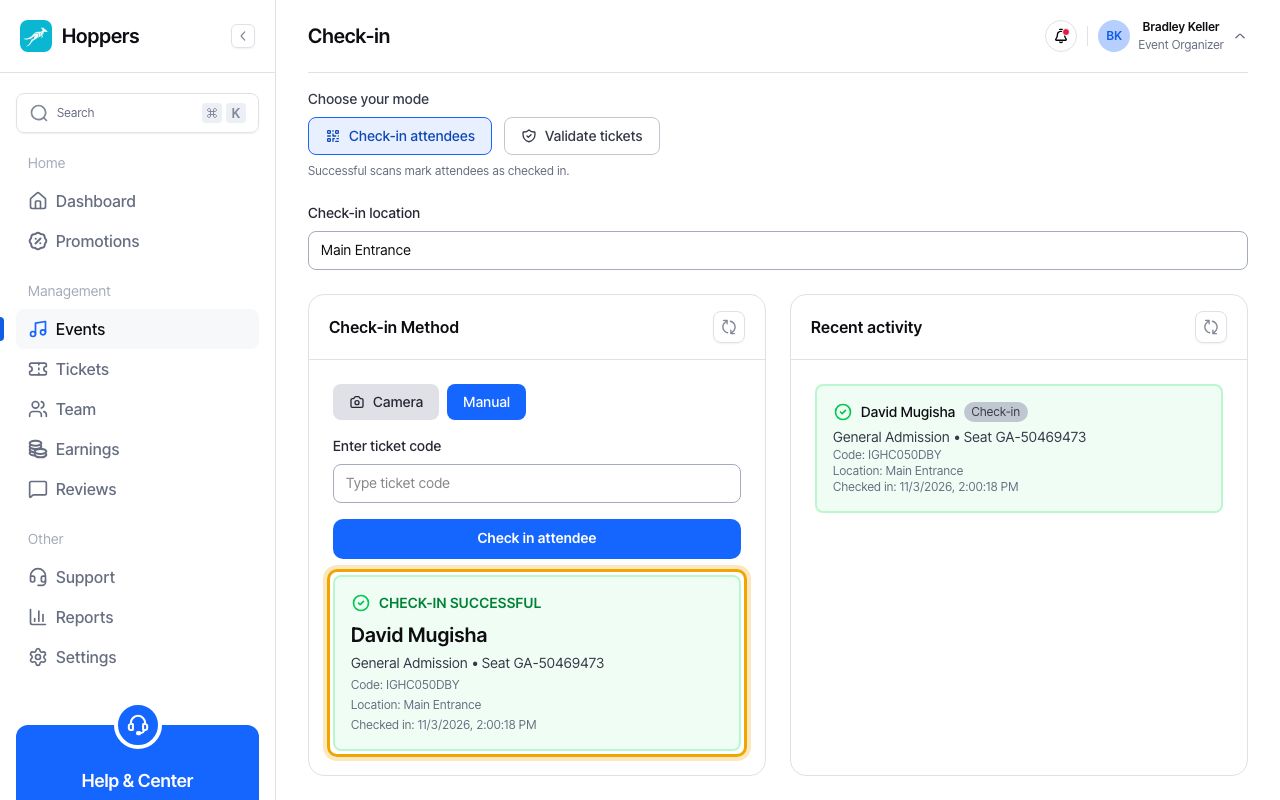
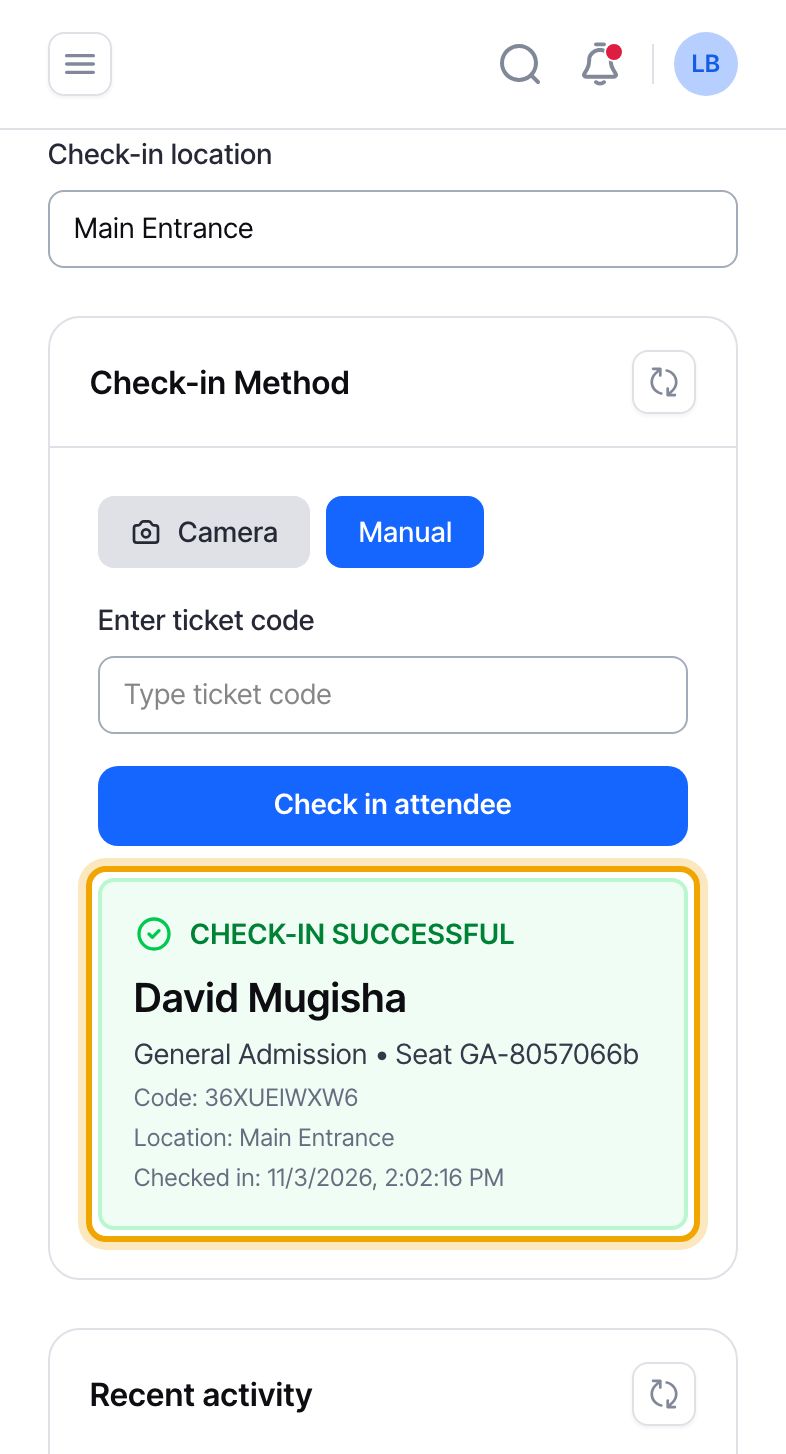
    Check the result: Hoppers dashboard on a computer
    Check the result: Hoppers dashboard on a phone
  7. 7

    Let your team scan

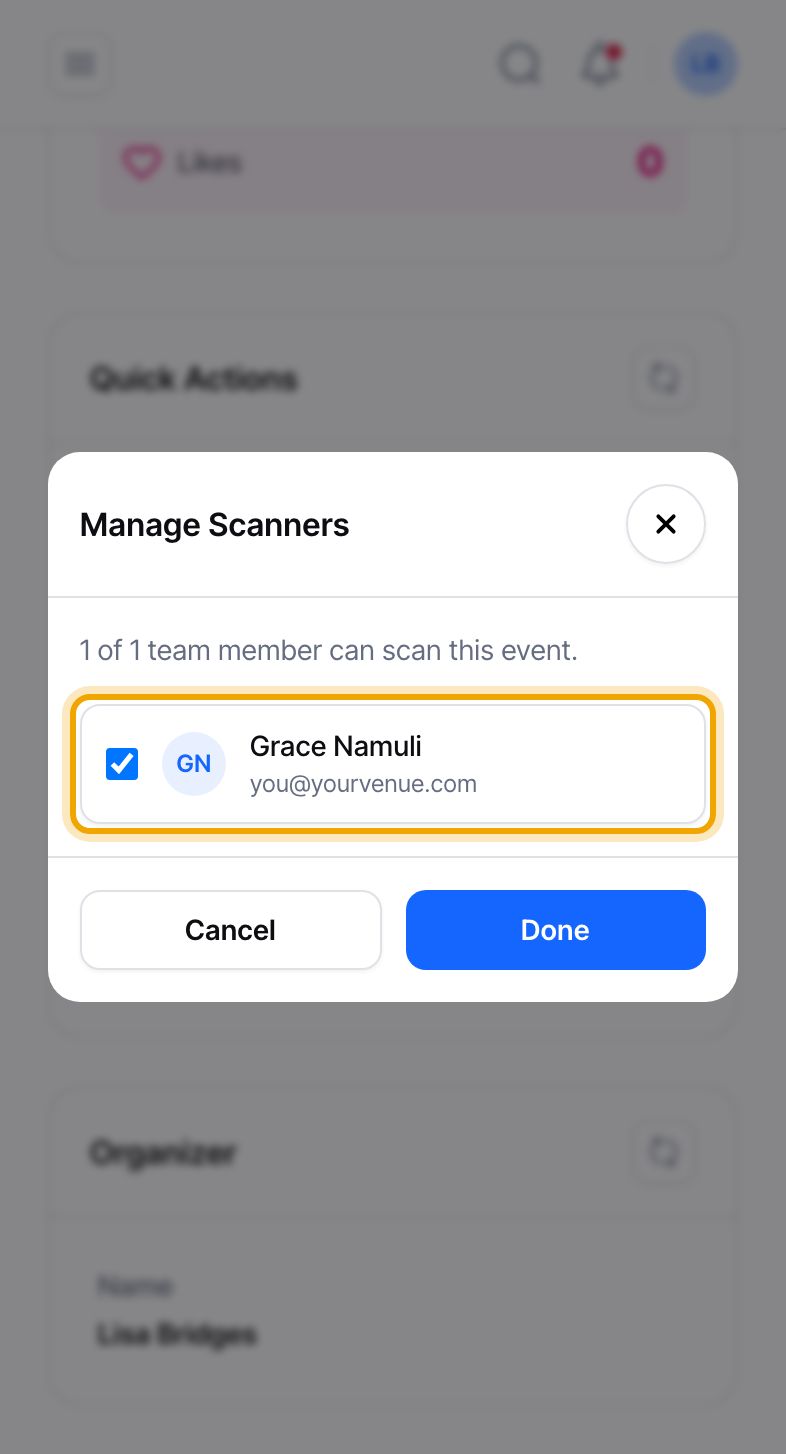
    To have helpers at the door, select “Back to Event”, then “Manage Scanners” in the “Quick Actions” box. Tick each team member who should scan this event, then select “Done”. The number on the button shows how many are assigned.

    Only people already on your team appear here. Add them first from “Team” in the menu.
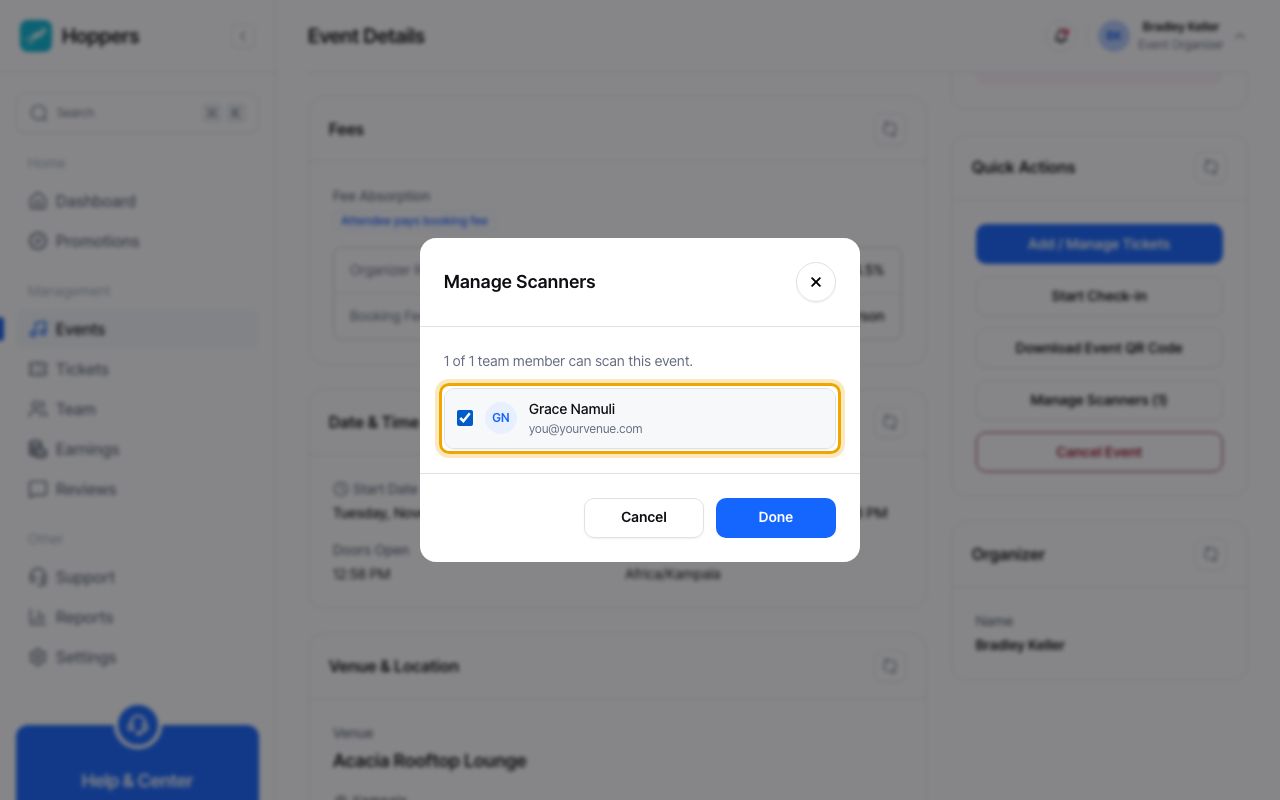
    Let your team scan: Hoppers dashboard on a computer
    Let your team scan: Hoppers dashboard on a phone
PreviousTrack your salesNext How organizer fees work