Hoppers
VenuesList your eventGet the app
Hoppers

Discover, plan and experience the best events across Uganda.

Get it onGoogle Play
Download on theApp Store

Discover

  • Browse events
  • This weekend
  • Free events
  • Places to go out
  • Categories

For organizers

  • Sell tickets
  • Pricing
  • Create account
  • Sign in

For venues

  • List your venue
  • Create account
  • Sign in

Company

  • About
  • Contact
  • FAQ
  • Help
  • Privacy
  • Terms

Cities

  • Arua
  • Entebbe
  • Fort Portal
  • Gulu
  • Hoima
  • Jinja
  • Kampala
  • Lira
  • Masaka
  • Mbale
  • Mbarara
  • MTN MoMo
  • Airtel Money
  • Visa
  • Mastercard
  • Instagram
  • TikTok
  • Snapchat

© 2026 Hoppers Ltd. All rights reserved.

  1. 1Get set up

    • Create your organizer account
    • Get your organizer profile verified
    • Set up your payout account
  2. 2Create your event

    • Create your event
    • Set up tickets and prices
    • Submit your event for approval
  3. 3Sell

    • Track your sales
  4. 4Event day

    • Scan tickets at the door
  5. 5Get paid

    • How organizer fees work
    • Understand your earnings
    • Request a payout
    • Refunds and cancellations

Help and guides / Organizers

Track your sales

See how many tickets each event has sold, how much money it has brought in, and how many tickets are left.

  1. 1

    Check all your events at a glance

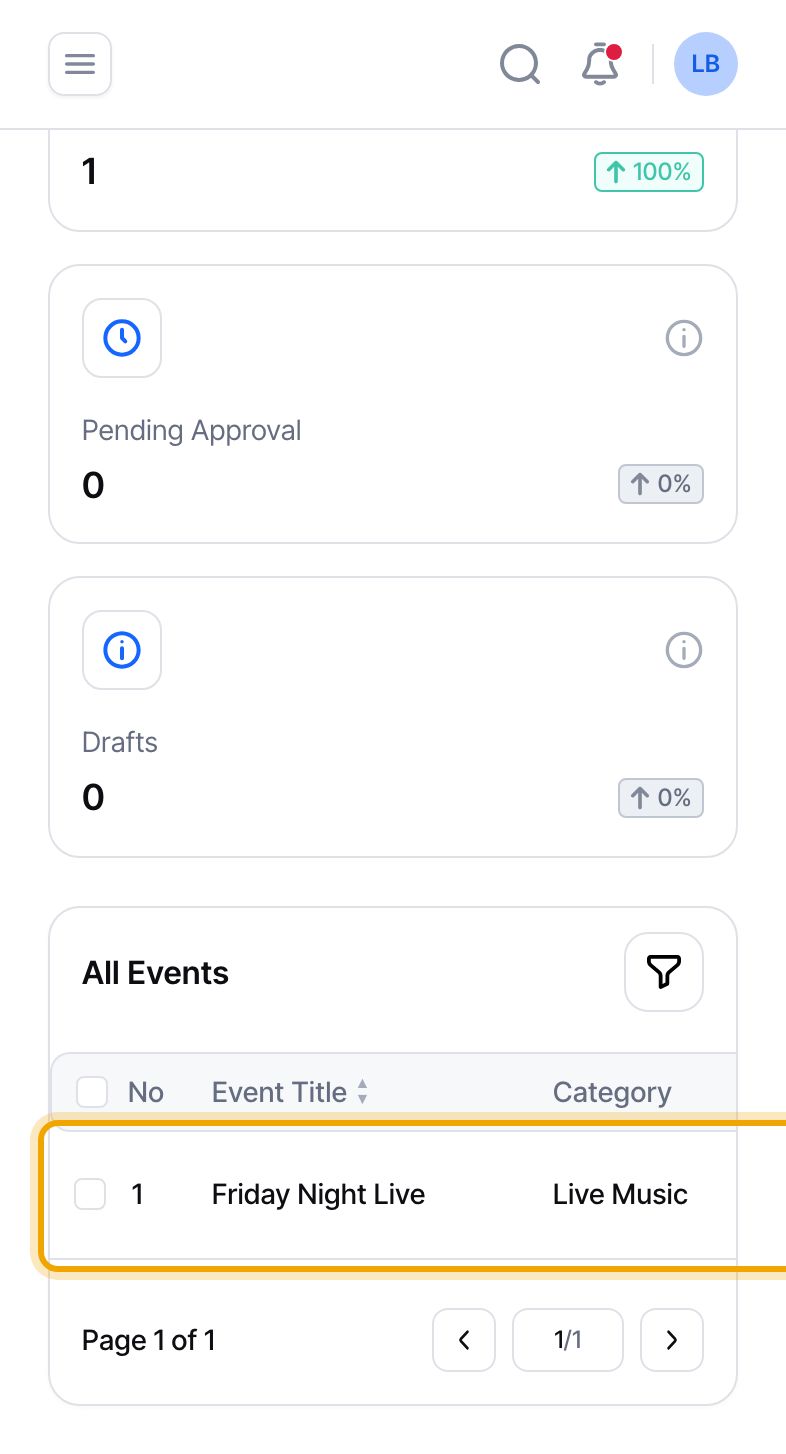
    Select “Events” in the menu. On a phone, tap the menu icon at the top left first. The list shows every event with its “Status”, its “Tickets Sold” and its “Revenue”. Select an event’s title to open it.
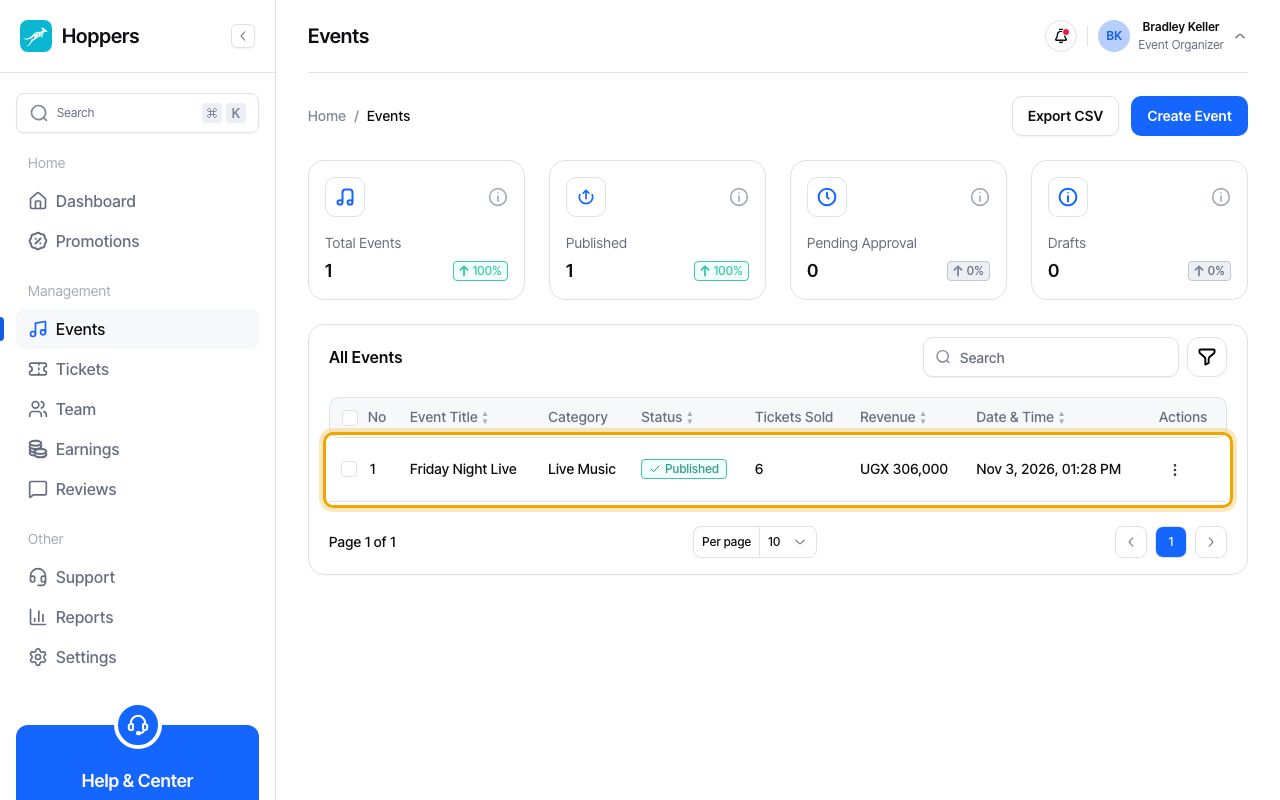
    Check all your events at a glance: Hoppers dashboard on a computer
    Check all your events at a glance: Hoppers dashboard on a phone
  2. 2

    Read the event’s Quick Stats

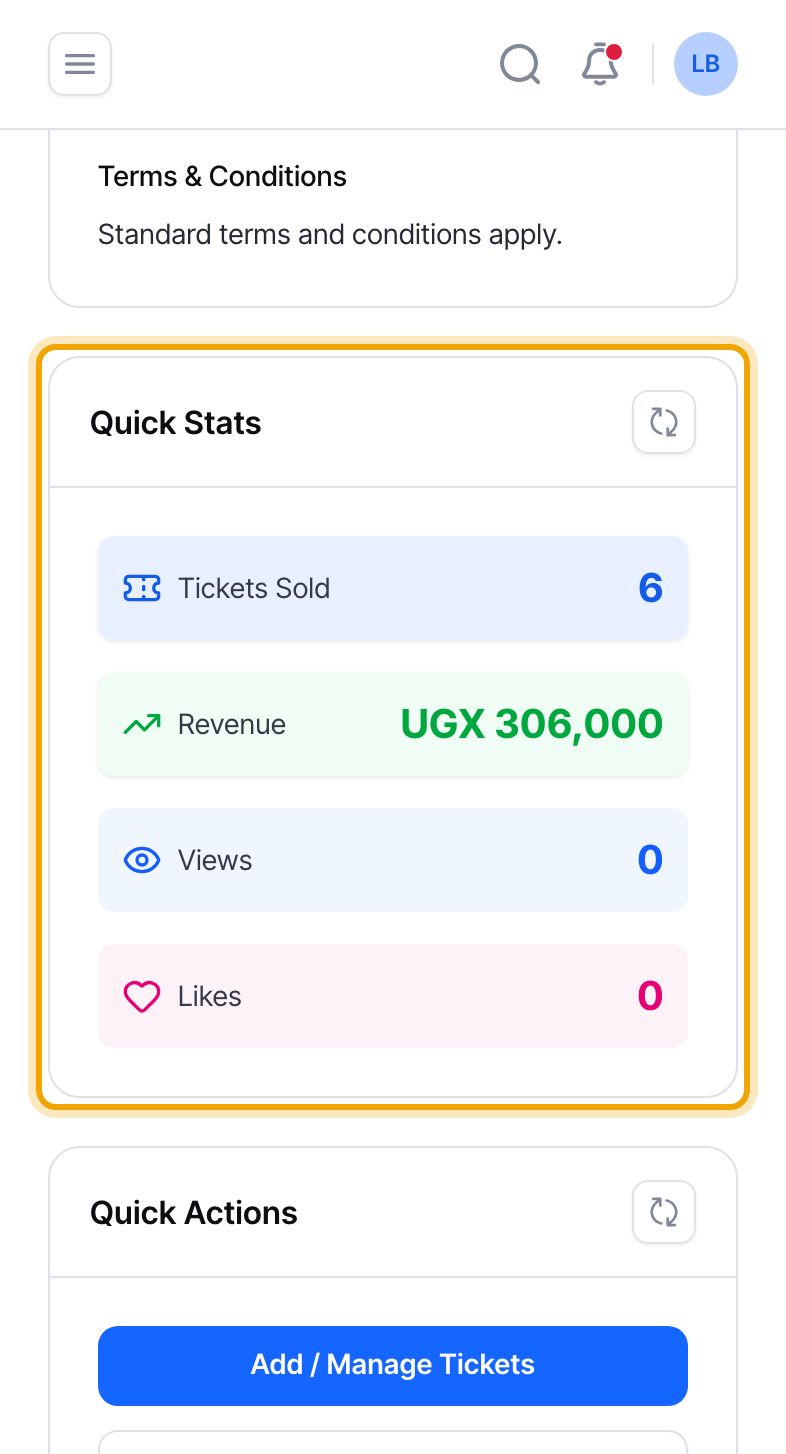
    On the event page, the “Quick Stats” box shows the “Tickets Sold”, the “Revenue” from those sales, and how many people have viewed and liked the event. On a phone the box is below the event details.

    Views and likes rising while sales stay flat can mean your price or your ticket types need a second look.
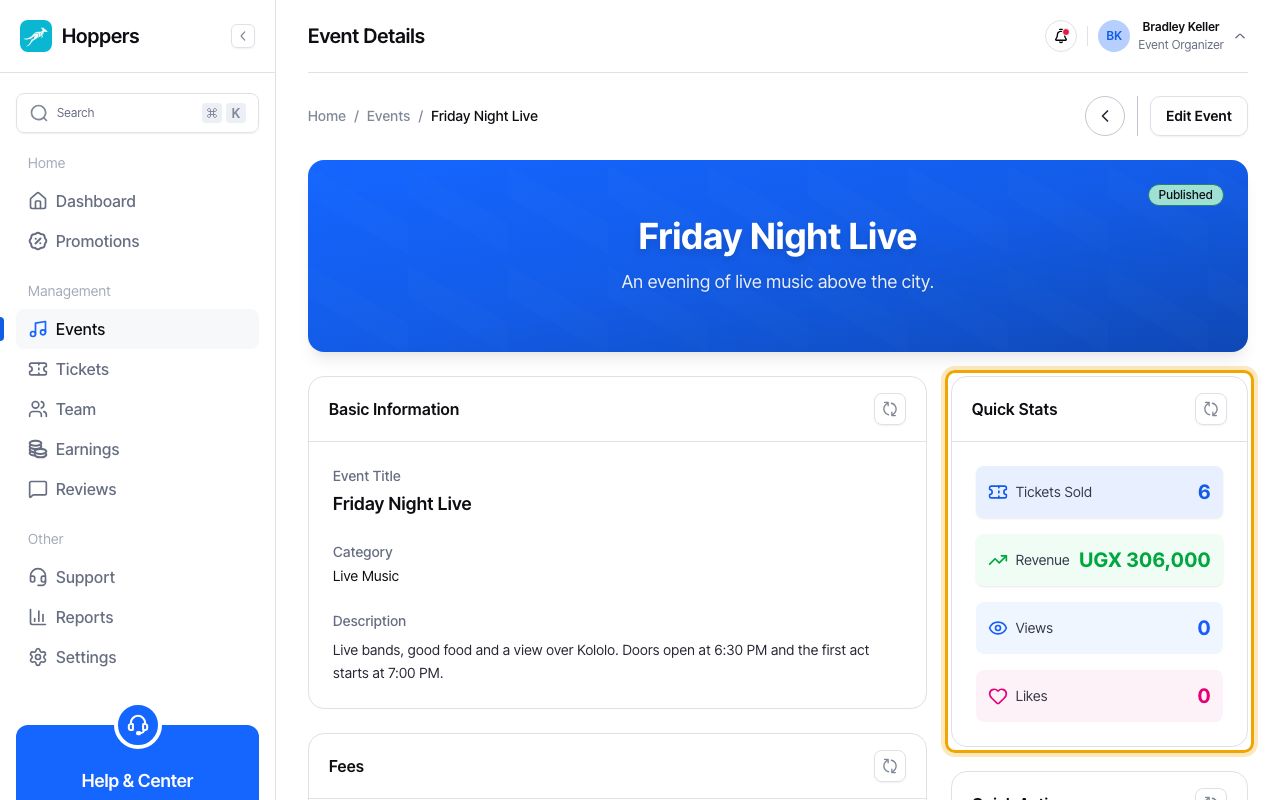
    Read the event’s Quick Stats: Hoppers dashboard on a computer
    Read the event’s Quick Stats: Hoppers dashboard on a phone
  3. 3

    Open the event’s tickets

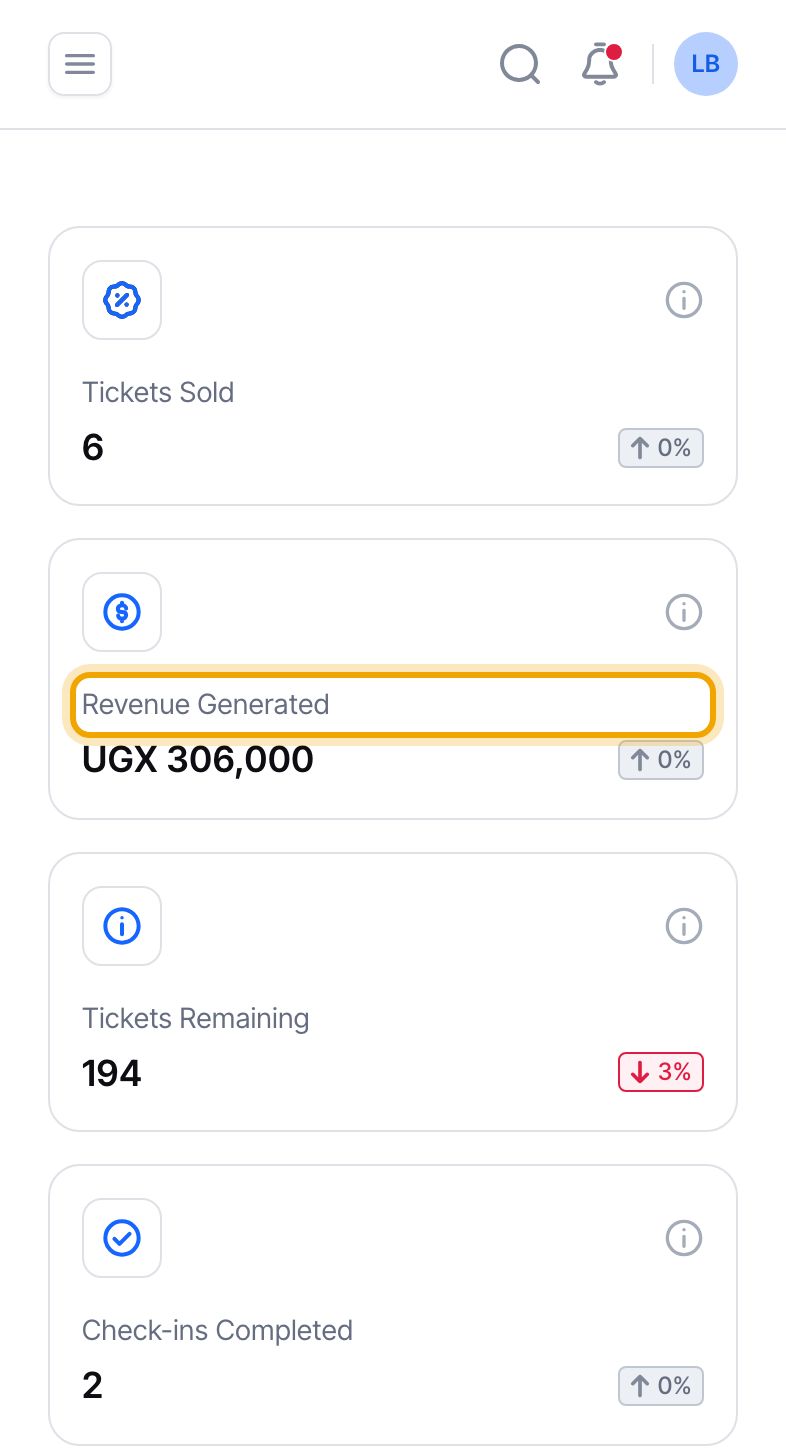
    Select “Tickets Sold” in the Quick Stats box. The Tickets page opens, showing only this event. The three figures at the top, “Tickets Sold”, “Revenue Generated” and “Tickets Remaining”, add up all of your events.
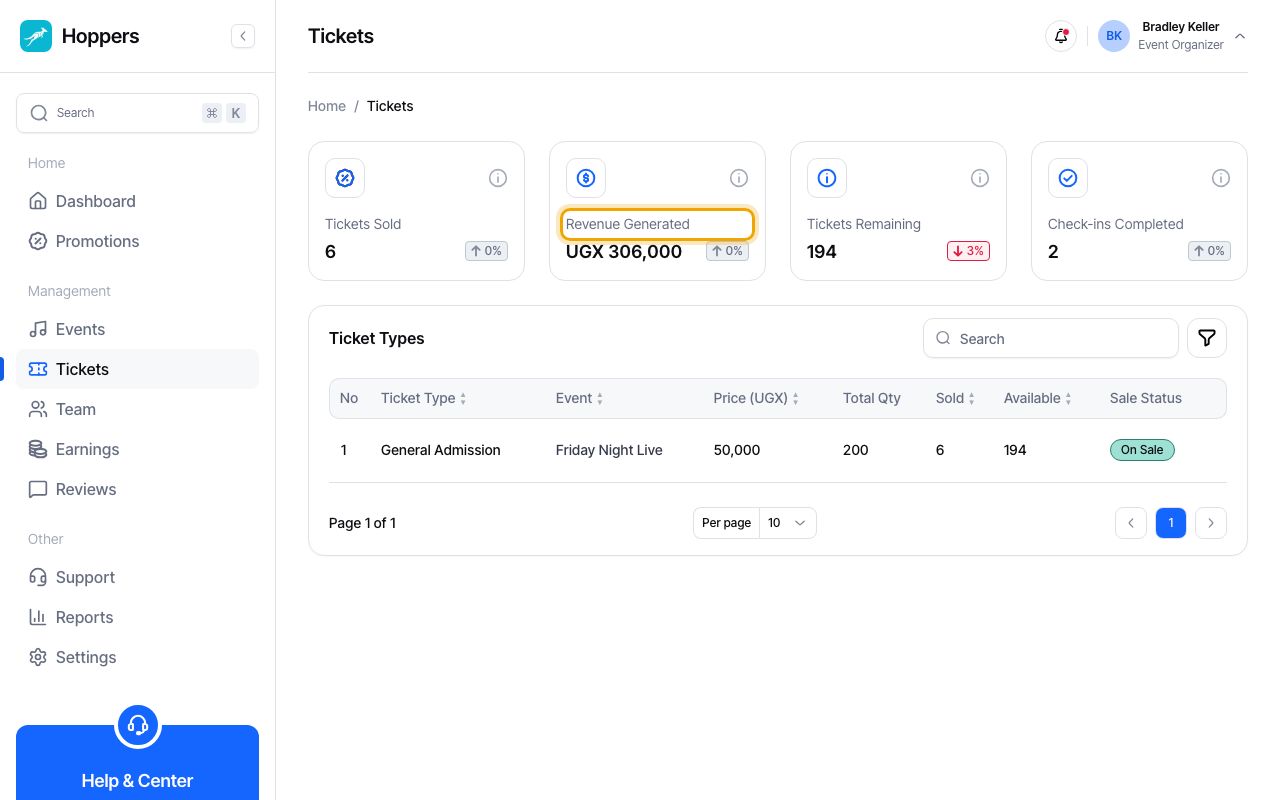
    Open the event’s tickets: Hoppers dashboard on a computer
    Open the event’s tickets: Hoppers dashboard on a phone
  4. 4

    See each ticket type

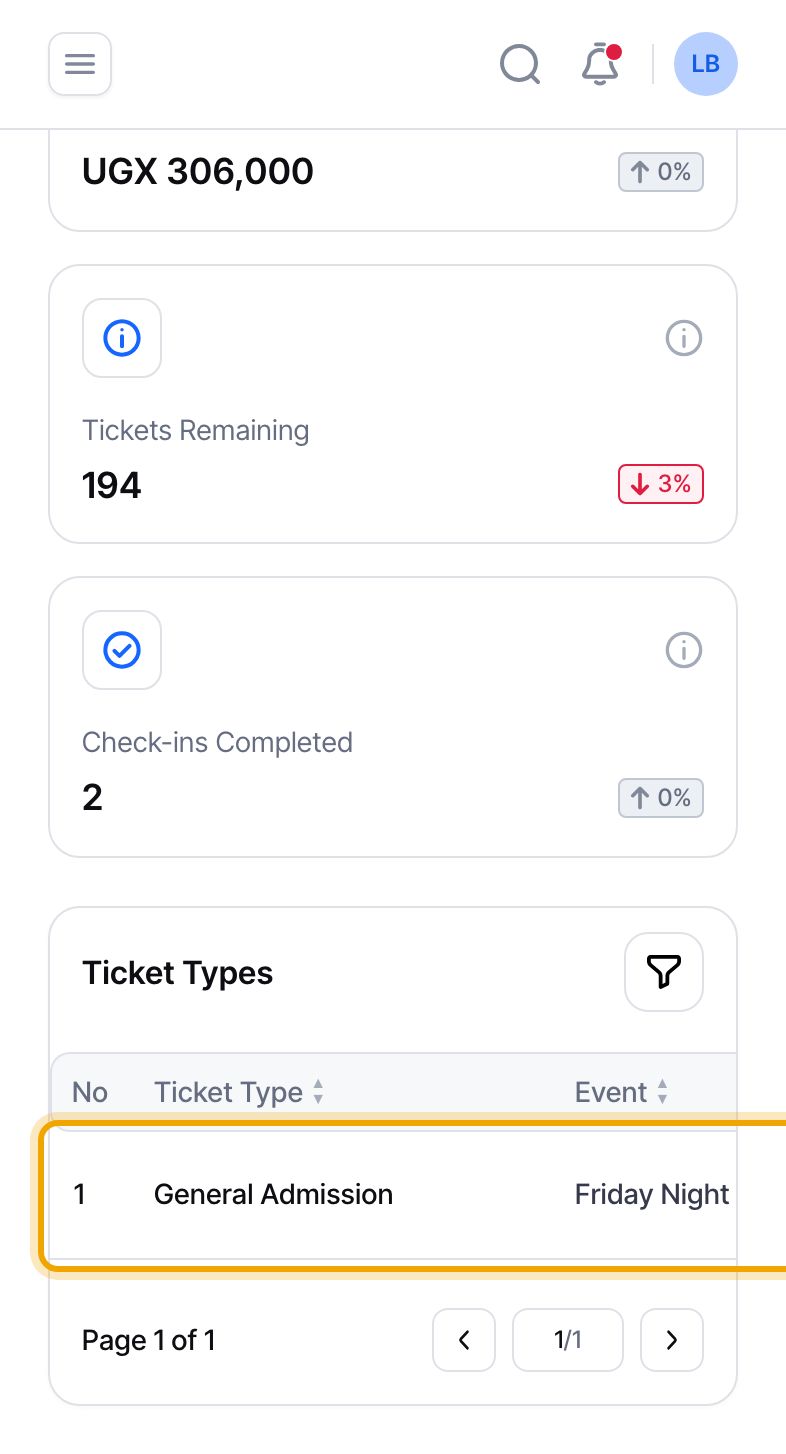
    The “Ticket Types” table has one row per ticket type, with its price, the total quantity, how many are “Sold”, how many are still “Available”, and its “Sale Status”. Use it to spot a ticket type that is close to selling out.

    To sell more of a ticket type, raise its quantity from “Add / Manage Tickets” on the event page. Our guide “Set up tickets and prices” shows how.
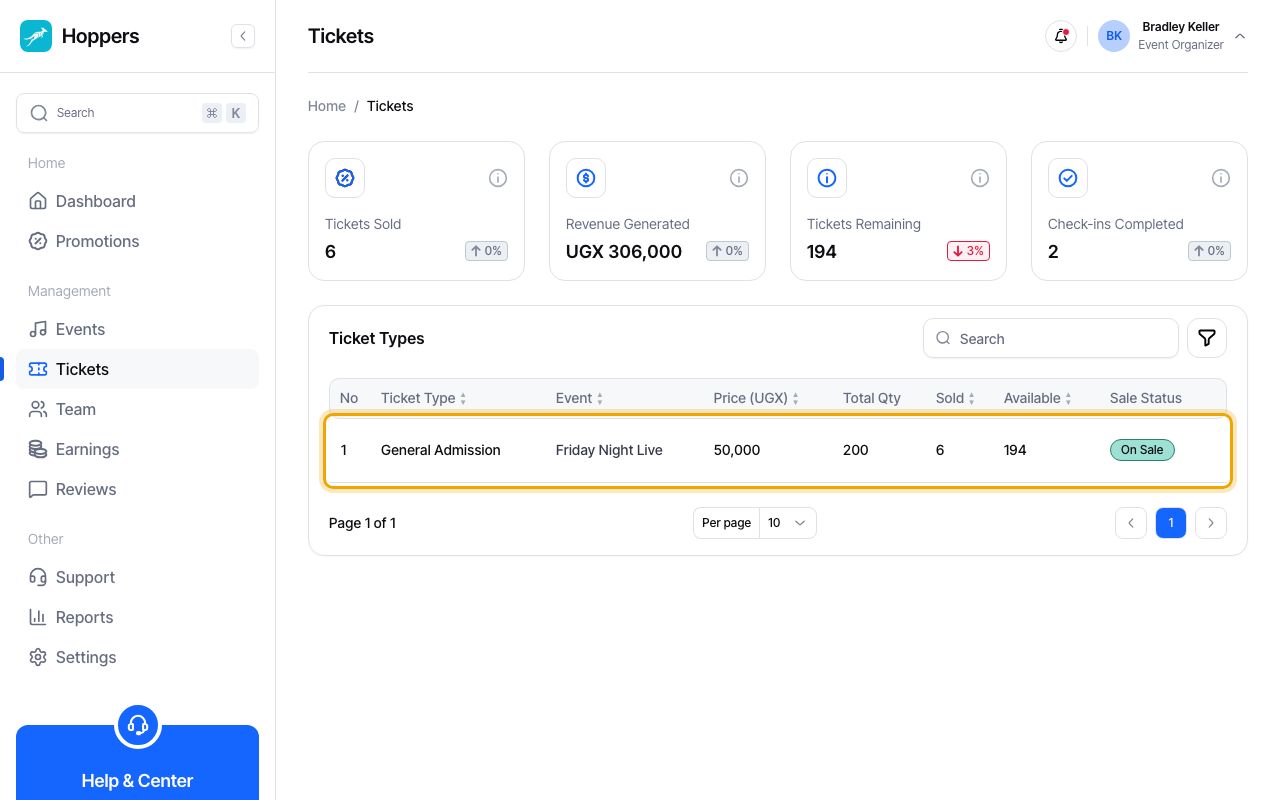
    See each ticket type: Hoppers dashboard on a computer
    See each ticket type: Hoppers dashboard on a phone
  5. 5

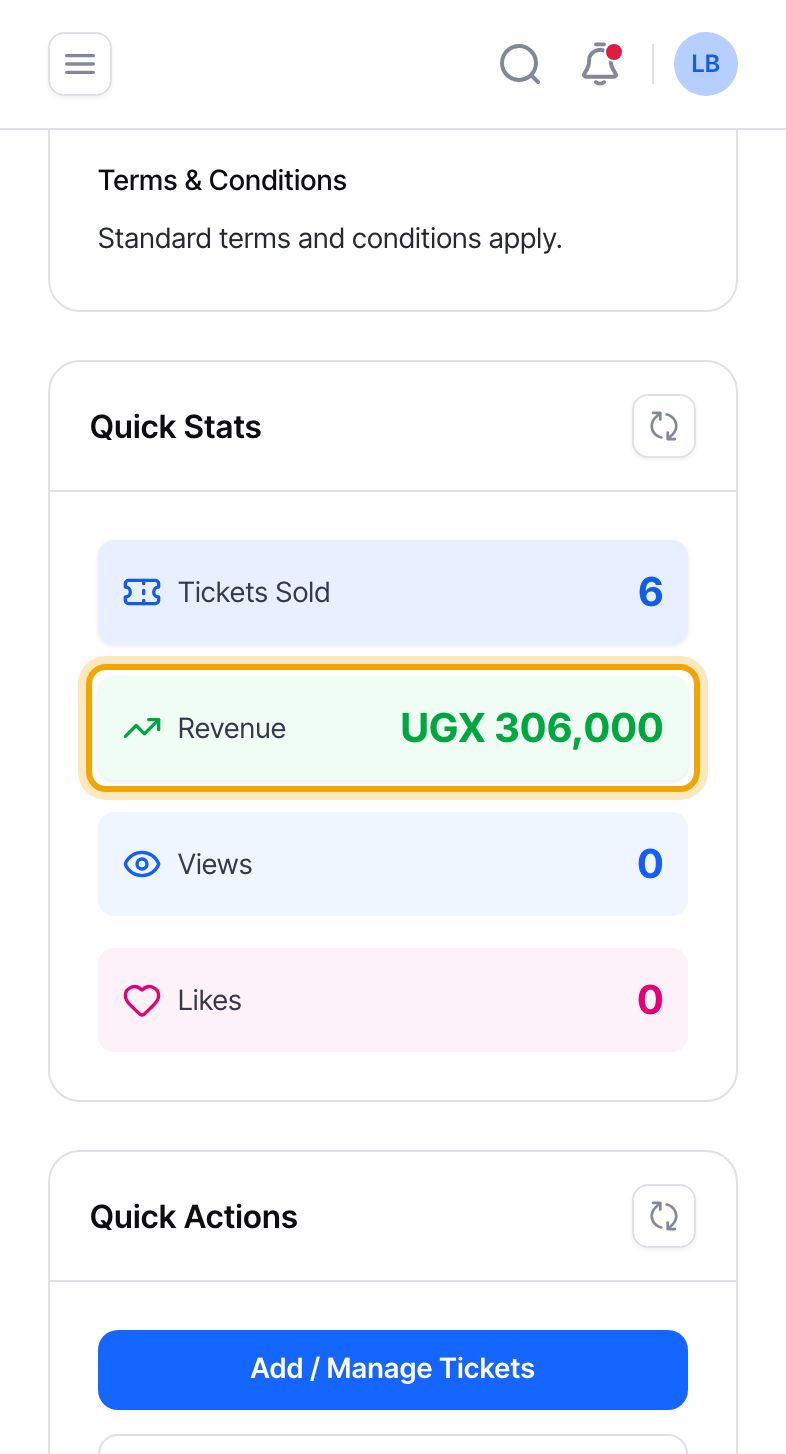
    Follow the money

    Back on the event page, select “Revenue” in the Quick Stats box to open the event’s earnings: what buyers paid, the fees, and what you receive. Our guide “Understand your earnings” explains every figure there.

    “Revenue” is everything buyers paid, including the booking fee they pay on top of each ticket. It is not what you receive: your organizer fee and the booking fee come out of it first.
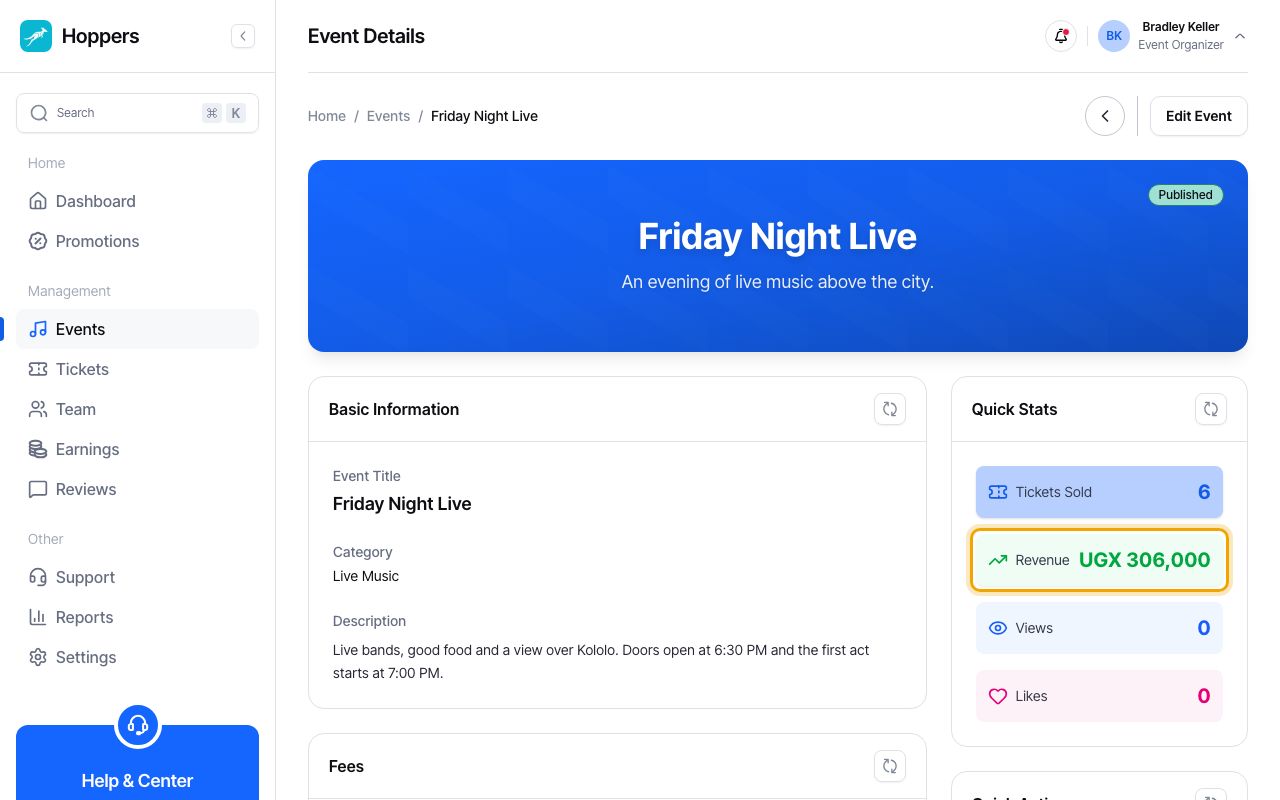
    Follow the money: Hoppers dashboard on a computer
    Follow the money: Hoppers dashboard on a phone
PreviousSubmit your event for approvalNext Scan tickets at the door